> ## Documentation Index
> Fetch the complete documentation index at: https://docs.tinyfish.ai/llms.txt
> Use this file to discover all available pages before exploring further.
# n8n
> Use TinyFish Web Agent as a node in n8n automation workflows
## Overview
The TinyFish Web Agent node for [n8n](https://n8n.io) lets you add AI-powered web automation to any n8n workflow. Browse any website using an AI-powered remote browser to extract structured data, fill forms, navigate multi-step workflows, or interact with JavaScript-rendered pages.
## Quick Start
### Prerequisites
* n8n instance (self-hosted or cloud)
* TinyFish Web Agent API key ([get one here](https://agent.tinyfish.ai/api-keys))
* Google account (for the Google Sheets part of the tutorial)
### Setting Up the TinyFish Node
In n8n, go to **Settings > Community Nodes**. Search for `n8n-nodes-tinyfish` and click **Install**.
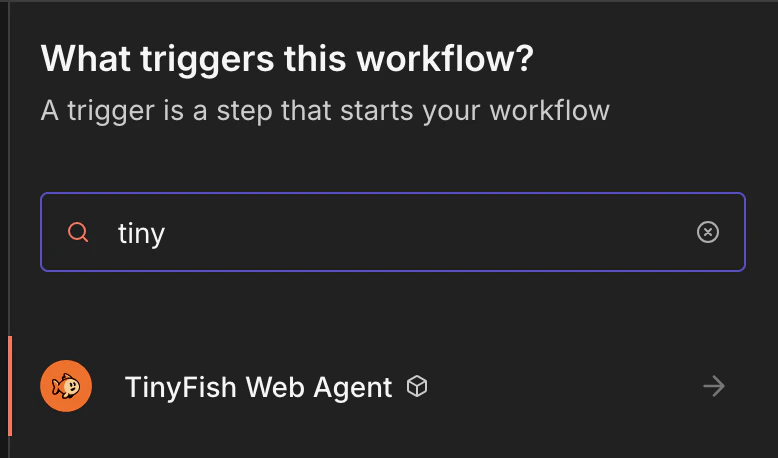
In any workflow, click the **+** button to open the node panel. Search for **TinyFish Web Agent** and click it to add it to your canvas.
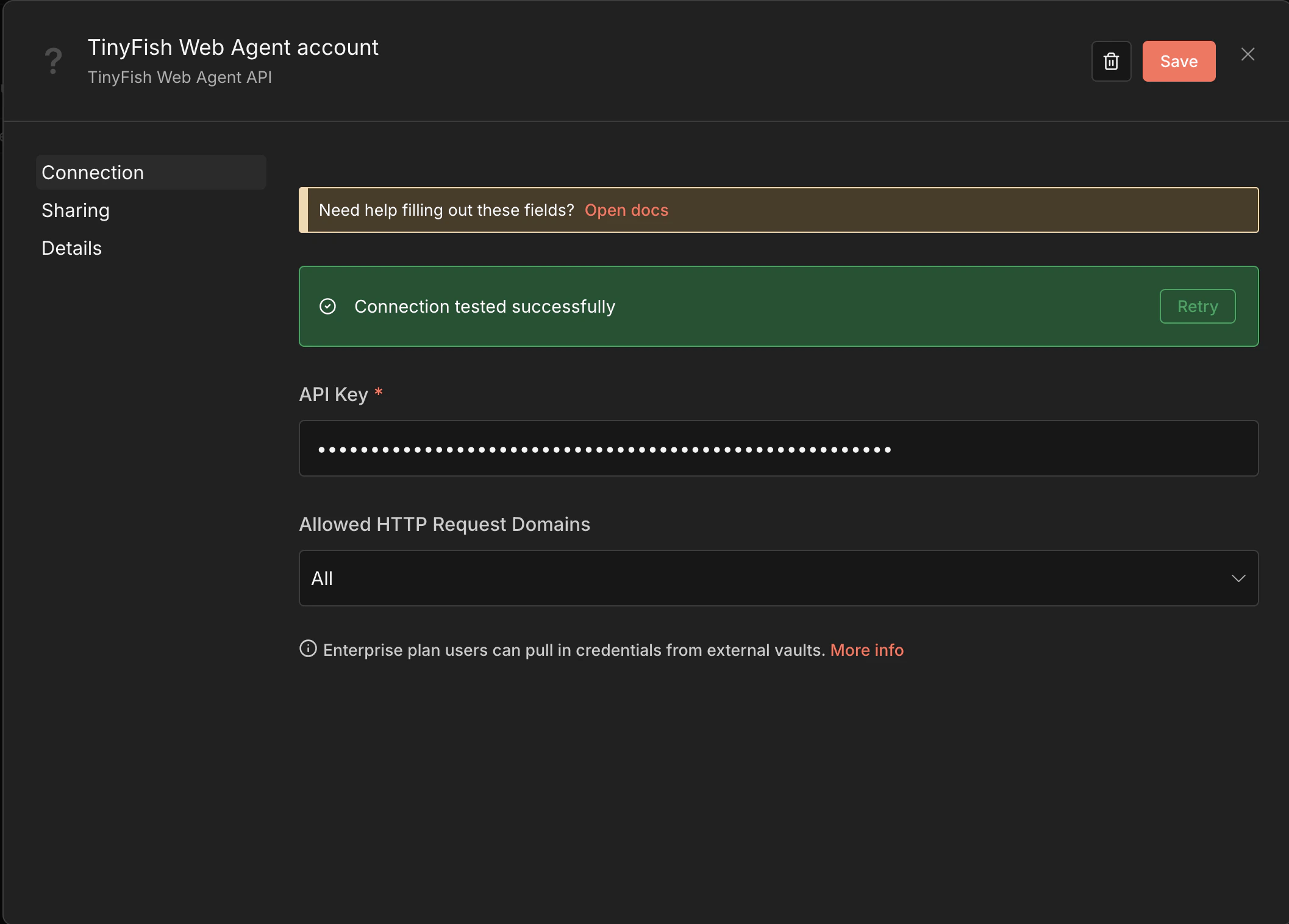
 Click **Credentials > New Credential** and select **TinyFish Web Agent API**. Paste your [API key](https://agent.tinyfish.ai/api-keys) and click **Save**.
 ## Your First Workflow with TinyFish
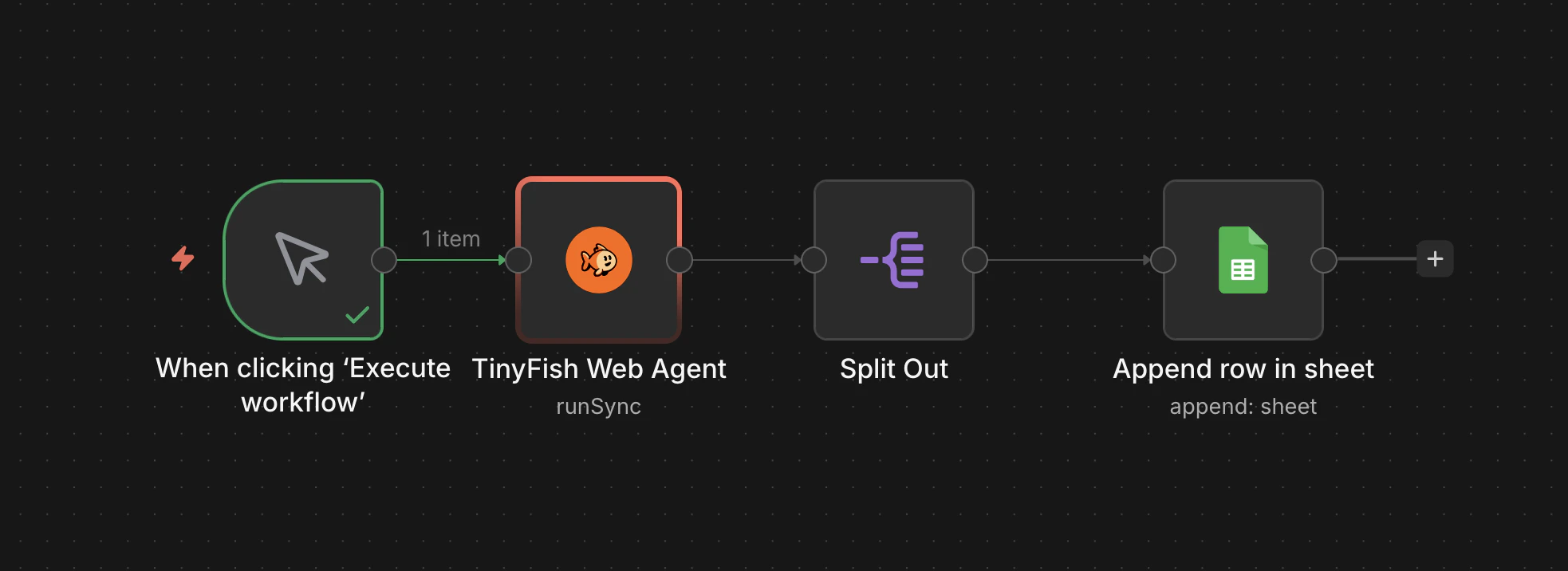
In this tutorial, we'll build a workflow that scrapes the top stories from Hacker News (news.ycombinator.com) and writes them to a Google Sheet — no code required. The final workflow looks like this:
## Your First Workflow with TinyFish
In this tutorial, we'll build a workflow that scrapes the top stories from Hacker News (news.ycombinator.com) and writes them to a Google Sheet — no code required. The final workflow looks like this:
 ### Scraping Hacker News to Google Sheets
#### Step 1: Add a Manual Trigger
1. Create a new workflow in n8n.
2. Add a **Manual Trigger** node ("When clicking 'Execute workflow'").
This lets you run the workflow on demand. You can swap this for a **Schedule Trigger** later to run it automatically (e.g., every hour).
#### Step 2: Configure TinyFish Web Agent
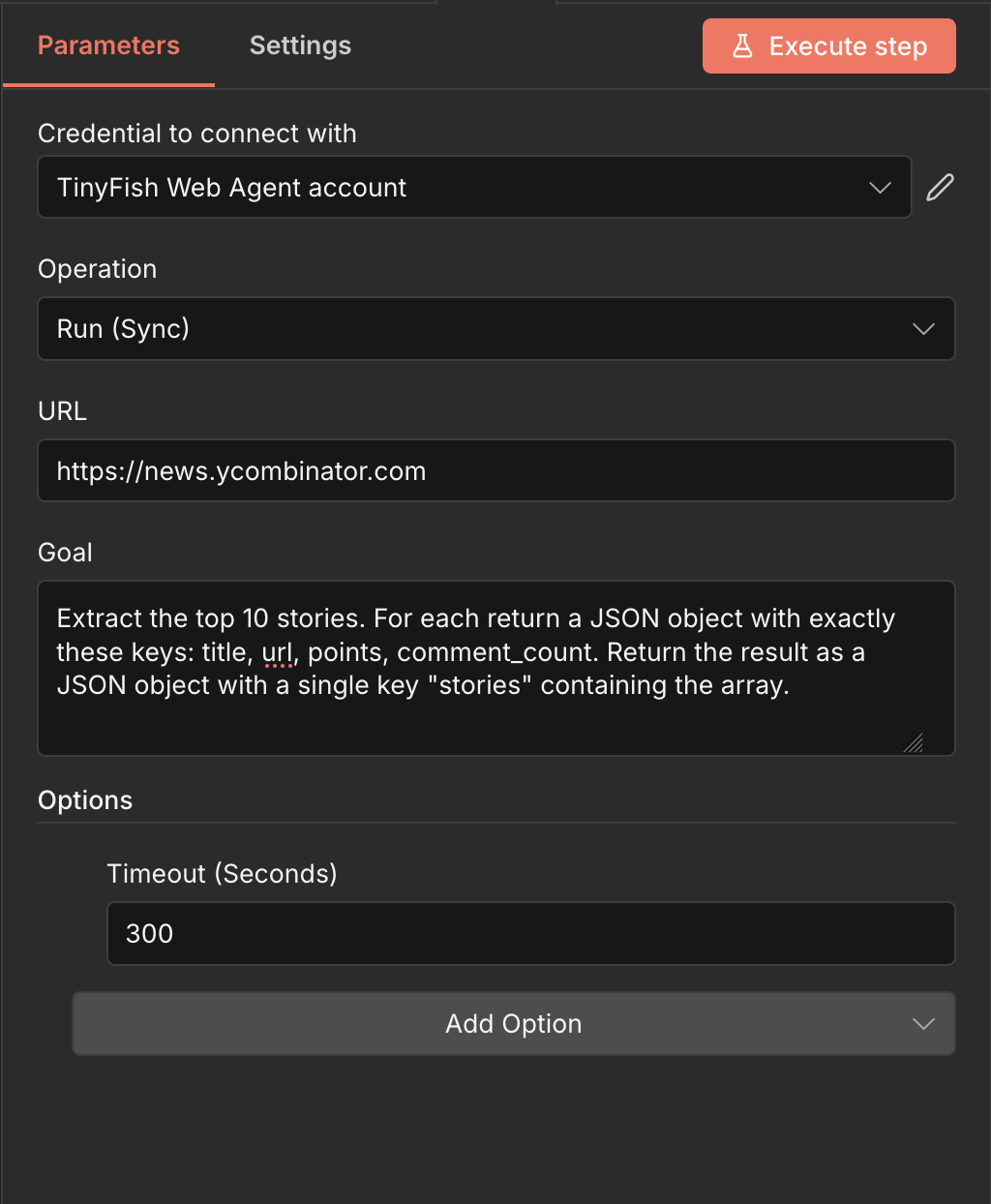
1. Add a **TinyFish Web Agent** node after the trigger.
2. Select your TinyFish credentials.
3. Set **Operation** to **Run (Sync)**.
4. Set **URL** to `https://news.ycombinator.com`.
5. Set **Goal** to:
```
Extract the top 10 stories. For each return a JSON object with exactly
these keys: title, url, points, comment_count. Return the result as a
JSON object with a single key "stories" containing the array.
```
### Scraping Hacker News to Google Sheets
#### Step 1: Add a Manual Trigger
1. Create a new workflow in n8n.
2. Add a **Manual Trigger** node ("When clicking 'Execute workflow'").
This lets you run the workflow on demand. You can swap this for a **Schedule Trigger** later to run it automatically (e.g., every hour).
#### Step 2: Configure TinyFish Web Agent
1. Add a **TinyFish Web Agent** node after the trigger.
2. Select your TinyFish credentials.
3. Set **Operation** to **Run (Sync)**.
4. Set **URL** to `https://news.ycombinator.com`.
5. Set **Goal** to:
```
Extract the top 10 stories. For each return a JSON object with exactly
these keys: title, url, points, comment_count. Return the result as a
JSON object with a single key "stories" containing the array.
```
 Always specify the exact JSON keys you want in your goal. This ensures the output is consistent and easy to map to downstream nodes.
#### Step 3: Split the Results
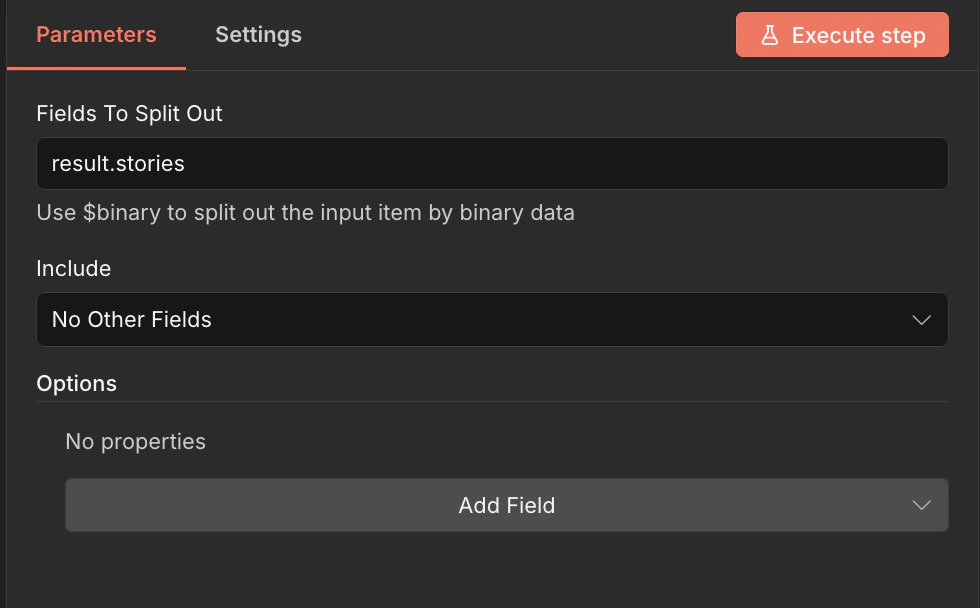
TinyFish returns a single JSON object containing the `stories` array. To write each story as a separate row in Google Sheets, we need to split it into individual items.
1. Add a **Split Out** node after TinyFish Web Agent.
2. Set **Fields To Split Out** to `result.stories`.
3. Set **Include** to **No Other Fields**.
Always specify the exact JSON keys you want in your goal. This ensures the output is consistent and easy to map to downstream nodes.
#### Step 3: Split the Results
TinyFish returns a single JSON object containing the `stories` array. To write each story as a separate row in Google Sheets, we need to split it into individual items.
1. Add a **Split Out** node after TinyFish Web Agent.
2. Set **Fields To Split Out** to `result.stories`.
3. Set **Include** to **No Other Fields**.
 #### Step 4: Write to Google Sheets
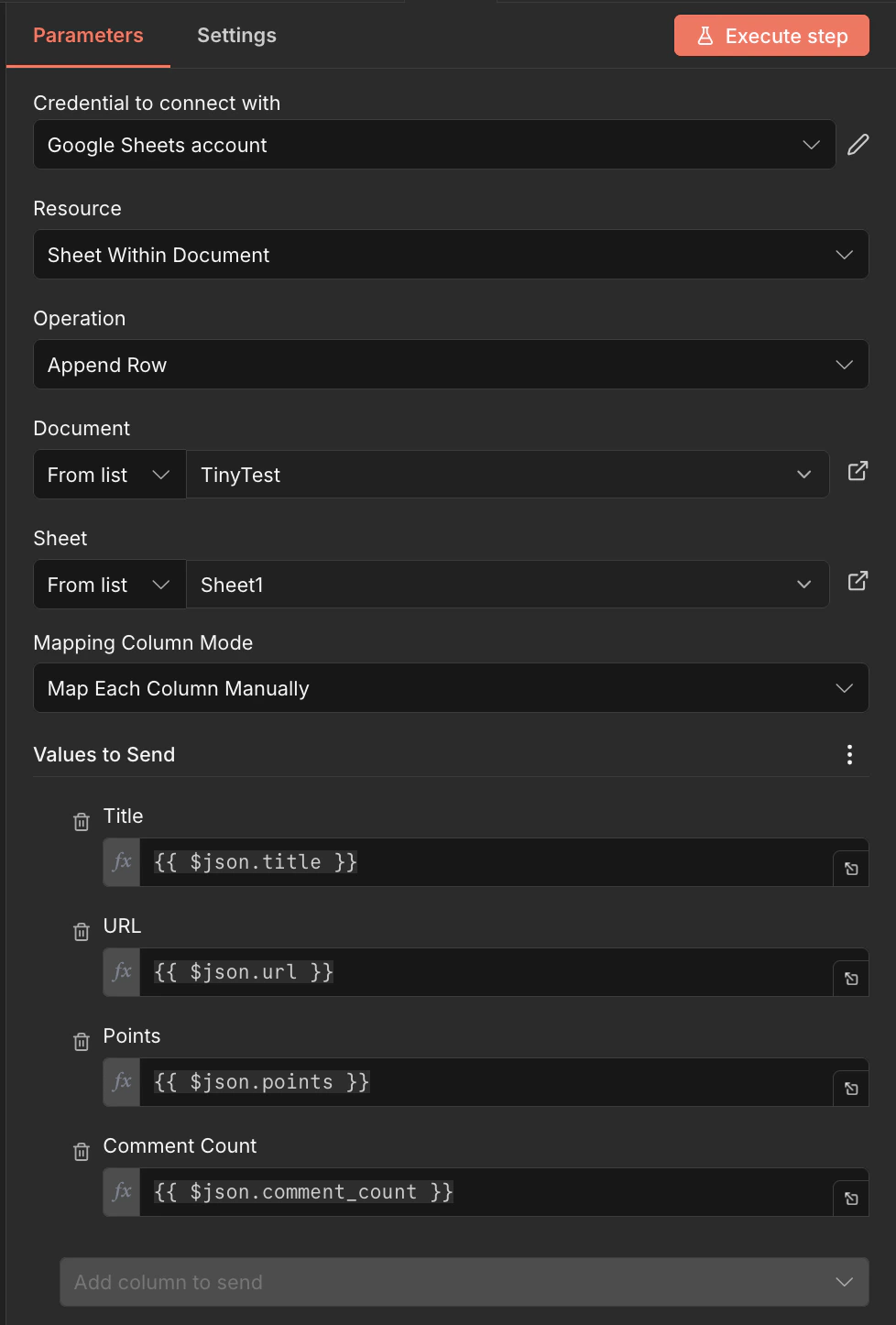
1. Add a **Google Sheets** node after Split Out.
2. Connect your **Google Sheets account** credentials.
3. Set **Resource** to **Sheet Within Document**.
4. Set **Operation** to **Append Row**.
5. Select your target **Document** and **Sheet**.
6. Set **Mapping Column Mode** to **Map Each Column Manually**.
7. Map the columns:
| Sheet Column | Value |
| ------------- | --------------------------- |
| Title | `{{ $json.title }}` |
| URL | `{{ $json.url }}` |
| Points | `{{ $json.points }}` |
| Comment Count | `{{ $json.comment_count }}` |
#### Step 4: Write to Google Sheets
1. Add a **Google Sheets** node after Split Out.
2. Connect your **Google Sheets account** credentials.
3. Set **Resource** to **Sheet Within Document**.
4. Set **Operation** to **Append Row**.
5. Select your target **Document** and **Sheet**.
6. Set **Mapping Column Mode** to **Map Each Column Manually**.
7. Map the columns:
| Sheet Column | Value |
| ------------- | --------------------------- |
| Title | `{{ $json.title }}` |
| URL | `{{ $json.url }}` |
| Points | `{{ $json.points }}` |
| Comment Count | `{{ $json.comment_count }}` |
 #### Step 5: Run It
1. Click **Execute Workflow** to test.
2. Check your Google Sheet — you should see 10 rows of Hacker News stories with titles, URLs, points, and comment counts.
The first run may take 30–60 seconds as TinyFish navigates and extracts from the live page. Subsequent workflow executions will be similarly timed since each run performs a fresh browser session.
### Next Steps
* Swap the Manual Trigger for a **Schedule Trigger** to run on a recurring schedule
* Add a **Filter** node to only capture stories above a certain point threshold
* Use **Run (SSE Streaming)** instead of Run (Sync) for longer-running extractions
* Try scraping other sites — TinyFish works on any website, including bot-protected pages
## HTTP Request Node (Alternative)
If you prefer not to install the community node, you can use n8n's built-in **HTTP Request** node with this configuration:
```json theme={null}
{
"url": "https://agent.tinyfish.ai/v1/automation/run",
"method": "POST",
"headers": {
"X-API-Key": "{{$credentials.tinyfishApiKey}}",
"Content-Type": "application/json"
},
"body": {
"url": "{{$json.targetUrl}}",
"goal": "{{$json.goal}}"
}
}
```
Set up a **Header Auth** credential with name `X-API-Key` and your TinyFish API key, then reference it in the HTTP Request node.
## Resources
* [n8n Community Nodes Docs](https://docs.n8n.io/integrations/community-nodes/)
* [TinyFish Web Agent API Docs](/quick-start)
* [TinyFish Integrations GitHub](https://github.com/tinyfish-io/tinyfish-web-agent-integrations)
#### Step 5: Run It
1. Click **Execute Workflow** to test.
2. Check your Google Sheet — you should see 10 rows of Hacker News stories with titles, URLs, points, and comment counts.
The first run may take 30–60 seconds as TinyFish navigates and extracts from the live page. Subsequent workflow executions will be similarly timed since each run performs a fresh browser session.
### Next Steps
* Swap the Manual Trigger for a **Schedule Trigger** to run on a recurring schedule
* Add a **Filter** node to only capture stories above a certain point threshold
* Use **Run (SSE Streaming)** instead of Run (Sync) for longer-running extractions
* Try scraping other sites — TinyFish works on any website, including bot-protected pages
## HTTP Request Node (Alternative)
If you prefer not to install the community node, you can use n8n's built-in **HTTP Request** node with this configuration:
```json theme={null}
{
"url": "https://agent.tinyfish.ai/v1/automation/run",
"method": "POST",
"headers": {
"X-API-Key": "{{$credentials.tinyfishApiKey}}",
"Content-Type": "application/json"
},
"body": {
"url": "{{$json.targetUrl}}",
"goal": "{{$json.goal}}"
}
}
```
Set up a **Header Auth** credential with name `X-API-Key` and your TinyFish API key, then reference it in the HTTP Request node.
## Resources
* [n8n Community Nodes Docs](https://docs.n8n.io/integrations/community-nodes/)
* [TinyFish Web Agent API Docs](/quick-start)
* [TinyFish Integrations GitHub](https://github.com/tinyfish-io/tinyfish-web-agent-integrations)