> ## Documentation Index
> Fetch the complete documentation index at: https://docs.tinyfish.ai/llms.txt
> Use this file to discover all available pages before exploring further.
# Vault Credentials
> How TinyFish uses your password manager credentials to log into websites during runs
When your vault is connected, you select which credentials TinyFish uses for each run. The AI agent handles navigation and identifies login forms. TinyFish fills in the actual credentials securely, without the agent ever seeing your passwords.
***
## Using the Playground
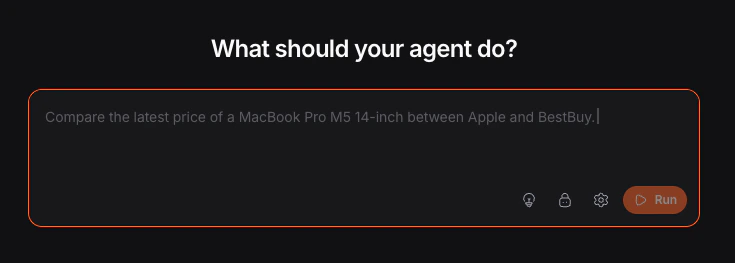
Click the lock icon in the playground toolbar.
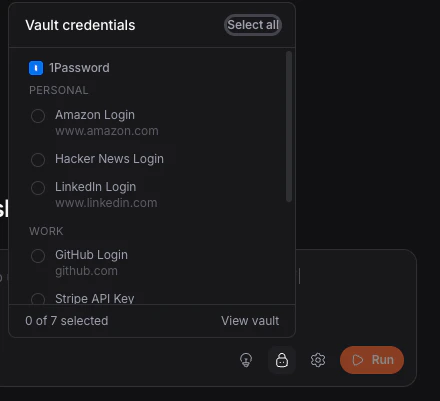
 Check the credentials you want to use for the run. Items are grouped by provider and vault name, and you can use **Select all** or **Deselect all**.
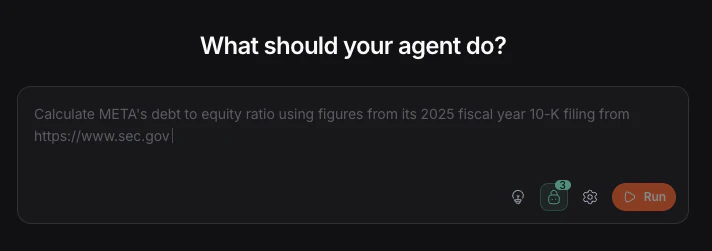
 Write your goal, then click **Run**. TinyFish handles login during the run when a matching site requires it.
 Your credential selections persist across sessions.
***
## Using the API
```python Python theme={null}
from tinyfish import TinyFish
client = TinyFish()
# Use all vault credentials for the run
response = client.agent.run(
url="https://www.linkedin.com",
goal="Log in and capture the latest 3 posts from the feed",
use_vault=True,
)
# Scope the run to specific credentials only
scoped = client.agent.run(
url="https://www.linkedin.com",
goal="Log in and capture the latest 3 posts from the feed",
use_vault=True,
credential_item_ids=[
"cred:conn-abc:Work:item-123",
"cred:conn-def:Personal:item-456",
],
)
```
```typescript TypeScript theme={null}
import { TinyFish } from "@tiny-fish/sdk";
const client = new TinyFish();
// Use all vault credentials for the run
const response = await client.agent.run({
url: "https://www.linkedin.com",
goal: "Log in and capture the latest 3 posts from the feed",
use_vault: true,
});
// Scope the run to specific credentials only
const scoped = await client.agent.run({
url: "https://www.linkedin.com",
goal: "Log in and capture the latest 3 posts from the feed",
use_vault: true,
credential_item_ids: [
"cred:conn-abc:Work:item-123",
"cred:conn-def:Personal:item-456",
],
});
```
```bash cURL theme={null}
# Use all vault credentials for the run
curl -X POST https://agent.tinyfish.ai/v1/automation/run \
-H "X-API-Key: $TINYFISH_API_KEY" \
-H "Content-Type: application/json" \
-d '{
"url": "https://www.linkedin.com",
"goal": "Log in and capture the latest 3 posts from the feed",
"use_vault": true
}'
# Scope the run to specific credentials only
curl -X POST https://agent.tinyfish.ai/v1/automation/run \
-H "X-API-Key: $TINYFISH_API_KEY" \
-H "Content-Type: application/json" \
-d '{
"url": "https://www.linkedin.com",
"goal": "Log in and capture the latest 3 posts from the feed",
"use_vault": true,
"credential_item_ids": [
"cred:conn-abc:Work:item-123",
"cred:conn-def:Personal:item-456"
]
}'
```
```bash CLI theme={null}
# Vault credentials support in the CLI is coming soon.
```
***
## Parameters
| Parameter | Type | Required | Default | Description |
| --------------------- | --------- | -------- | ---------------- | ---------------------------------------------------------------------------------------------------------------------------- |
| `use_vault` | boolean | No | `false` | Enable vault credentials for this run |
| `credential_item_ids` | string\[] | No | All synced items | Scope to specific credential URIs from [`GET /v1/vault/items`](/vault-setup#managing-your-vault). Requires `use_vault: true` |
***
## Domain Matching
Credentials are matched by domain.
For example, a credential with `linkedin.com` in its URL will be available when the agent navigates to `www.linkedin.com` or `login.linkedin.com`.
Credentials are not available on unrelated domains.
If you have multiple credentials for the same domain, TinyFish uses the ones you selected for that run.
***
## Security
### What the AI agent sees
Labels and field names only. Never actual values. The agent tells TinyFish where to type, and TinyFish handles what to type.
### What we don't do
Credentials never appear in agent prompts, run logs, screenshots, or streaming output. We do not rely on visual obfuscation as a security measure.
### Credential lifecycle
Credentials are resolved at the browser automation layer, not the AI planning layer. Values exist in memory only for the duration of the input action, then are discarded.
### Per-run access
Each run only gets the credentials you explicitly selected. The default is no vault access with `use_vault: false`.
### Encryption
Vault provider tokens are encrypted at rest and never stored in plaintext. You can revoke access by disconnecting the vault or rotating the token.
***
## Limitations
| Limitation | Notes |
| --------------- | ------------------------------------------------------------------------------------------------------------------------- |
| MFA / TOTP | Supported for time-based codes if the vault item has a TOTP field. Hardware keys and push notifications are not supported |
| Anti-bot | Some sites block automated login even with correct credentials. Use stealth mode and a proxy |
| Account lockout | Failed attempts count against normal lockout policies |
| OAuth / SSO | Redirect-based flows may not work for all providers |
For logged-in workflows, combine vault credentials with
[Browser Context Profiles](/key-concepts/browser-context-profiles). Browser Context Profiles maintain session state; Vault can
repair it when a matching credential is available. For bot protection, also use
[Proxies](/key-concepts/proxies).
***
## Troubleshooting
Add `use_vault: true` to the request body.
Verify the credential domain matches the target site.
Connect a vault first in **Settings → Vault**.
Use `credential_item_ids` to scope the run to the exact credential you want.
Pair Vault with [Browser Context Profiles](/key-concepts/browser-context-profiles). Browser Context Profiles keep the browser
logged in; if the session goes stale and a matching vault credential is available, TinyFish can
use the credential to repair the session. For bot challenges, also add
`browser_profile: "stealth"` and `proxy_config: { enabled: true }`.
Connect a vault first in **Settings → Vault**.
***
## FAQ
No. Values are only accessed at the moment of typing, and the AI agent never sees them.
No. Credentials are not captured in screenshots, streaming output, or logs.
Click **Sync** in **Settings → Vault**. The next run uses the updated credential.
TinyFish retries with available credentials for that domain. After multiple failures, the run continues without login.
Runs use the credential state from when they started. Sync before starting a new run.
***
## Related
Set up 1Password or Bitwarden
Parameters, lifecycle, and result handling
Reuse Browser Context Profile state across runs
Your credential selections persist across sessions.
***
## Using the API
```python Python theme={null}
from tinyfish import TinyFish
client = TinyFish()
# Use all vault credentials for the run
response = client.agent.run(
url="https://www.linkedin.com",
goal="Log in and capture the latest 3 posts from the feed",
use_vault=True,
)
# Scope the run to specific credentials only
scoped = client.agent.run(
url="https://www.linkedin.com",
goal="Log in and capture the latest 3 posts from the feed",
use_vault=True,
credential_item_ids=[
"cred:conn-abc:Work:item-123",
"cred:conn-def:Personal:item-456",
],
)
```
```typescript TypeScript theme={null}
import { TinyFish } from "@tiny-fish/sdk";
const client = new TinyFish();
// Use all vault credentials for the run
const response = await client.agent.run({
url: "https://www.linkedin.com",
goal: "Log in and capture the latest 3 posts from the feed",
use_vault: true,
});
// Scope the run to specific credentials only
const scoped = await client.agent.run({
url: "https://www.linkedin.com",
goal: "Log in and capture the latest 3 posts from the feed",
use_vault: true,
credential_item_ids: [
"cred:conn-abc:Work:item-123",
"cred:conn-def:Personal:item-456",
],
});
```
```bash cURL theme={null}
# Use all vault credentials for the run
curl -X POST https://agent.tinyfish.ai/v1/automation/run \
-H "X-API-Key: $TINYFISH_API_KEY" \
-H "Content-Type: application/json" \
-d '{
"url": "https://www.linkedin.com",
"goal": "Log in and capture the latest 3 posts from the feed",
"use_vault": true
}'
# Scope the run to specific credentials only
curl -X POST https://agent.tinyfish.ai/v1/automation/run \
-H "X-API-Key: $TINYFISH_API_KEY" \
-H "Content-Type: application/json" \
-d '{
"url": "https://www.linkedin.com",
"goal": "Log in and capture the latest 3 posts from the feed",
"use_vault": true,
"credential_item_ids": [
"cred:conn-abc:Work:item-123",
"cred:conn-def:Personal:item-456"
]
}'
```
```bash CLI theme={null}
# Vault credentials support in the CLI is coming soon.
```
***
## Parameters
| Parameter | Type | Required | Default | Description |
| --------------------- | --------- | -------- | ---------------- | ---------------------------------------------------------------------------------------------------------------------------- |
| `use_vault` | boolean | No | `false` | Enable vault credentials for this run |
| `credential_item_ids` | string\[] | No | All synced items | Scope to specific credential URIs from [`GET /v1/vault/items`](/vault-setup#managing-your-vault). Requires `use_vault: true` |
***
## Domain Matching
Credentials are matched by domain.
For example, a credential with `linkedin.com` in its URL will be available when the agent navigates to `www.linkedin.com` or `login.linkedin.com`.
Credentials are not available on unrelated domains.
If you have multiple credentials for the same domain, TinyFish uses the ones you selected for that run.
***
## Security
### What the AI agent sees
Labels and field names only. Never actual values. The agent tells TinyFish where to type, and TinyFish handles what to type.
### What we don't do
Credentials never appear in agent prompts, run logs, screenshots, or streaming output. We do not rely on visual obfuscation as a security measure.
### Credential lifecycle
Credentials are resolved at the browser automation layer, not the AI planning layer. Values exist in memory only for the duration of the input action, then are discarded.
### Per-run access
Each run only gets the credentials you explicitly selected. The default is no vault access with `use_vault: false`.
### Encryption
Vault provider tokens are encrypted at rest and never stored in plaintext. You can revoke access by disconnecting the vault or rotating the token.
***
## Limitations
| Limitation | Notes |
| --------------- | ------------------------------------------------------------------------------------------------------------------------- |
| MFA / TOTP | Supported for time-based codes if the vault item has a TOTP field. Hardware keys and push notifications are not supported |
| Anti-bot | Some sites block automated login even with correct credentials. Use stealth mode and a proxy |
| Account lockout | Failed attempts count against normal lockout policies |
| OAuth / SSO | Redirect-based flows may not work for all providers |
For logged-in workflows, combine vault credentials with
[Browser Context Profiles](/key-concepts/browser-context-profiles). Browser Context Profiles maintain session state; Vault can
repair it when a matching credential is available. For bot protection, also use
[Proxies](/key-concepts/proxies).
***
## Troubleshooting
Add `use_vault: true` to the request body.
Verify the credential domain matches the target site.
Connect a vault first in **Settings → Vault**.
Use `credential_item_ids` to scope the run to the exact credential you want.
Pair Vault with [Browser Context Profiles](/key-concepts/browser-context-profiles). Browser Context Profiles keep the browser
logged in; if the session goes stale and a matching vault credential is available, TinyFish can
use the credential to repair the session. For bot challenges, also add
`browser_profile: "stealth"` and `proxy_config: { enabled: true }`.
Connect a vault first in **Settings → Vault**.
***
## FAQ
No. Values are only accessed at the moment of typing, and the AI agent never sees them.
No. Credentials are not captured in screenshots, streaming output, or logs.
Click **Sync** in **Settings → Vault**. The next run uses the updated credential.
TinyFish retries with available credentials for that domain. After multiple failures, the run continues without login.
Runs use the credential state from when they started. Sync before starting a new run.
***
## Related
Set up 1Password or Bitwarden
Parameters, lifecycle, and result handling
Reuse Browser Context Profile state across runs