> ## Documentation Index
> Fetch the complete documentation index at: https://docs.tinyfish.ai/llms.txt
> Use this file to discover all available pages before exploring further.
# Connect Your Vault
> Connect your password manager so TinyFish can securely log into websites during automations
TinyFish can log into websites on your behalf using credentials from your existing password manager. Connect your vault once, then select which credentials to use for each run.
## How It Works
Connect your password manager account, TinyFish syncs your vault items, and then you select specific credentials for each run. Each run only gets the credentials you explicitly choose, so no run has access to your full vault.
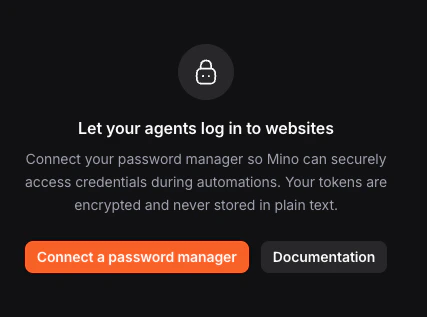 ## Connect Your Provider
More providers coming soon.
In TinyFish, go to **Settings > Vault** and click **Connect a password manager**.
## Connect Your Provider
More providers coming soon.
In TinyFish, go to **Settings > Vault** and click **Connect a password manager**.
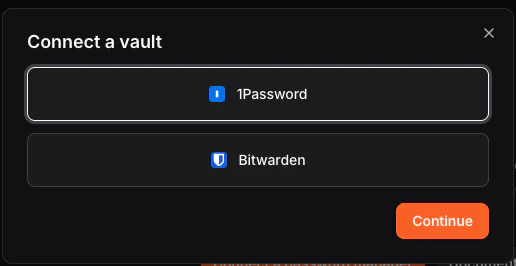 Paste your Service Account Token (starts with `ops_`), then click **Connect**.
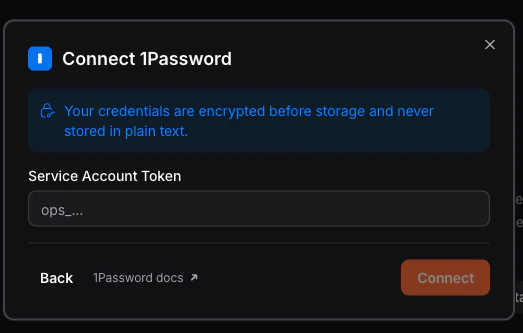 Your items sync automatically. Confirm they appear grouped by vault name.
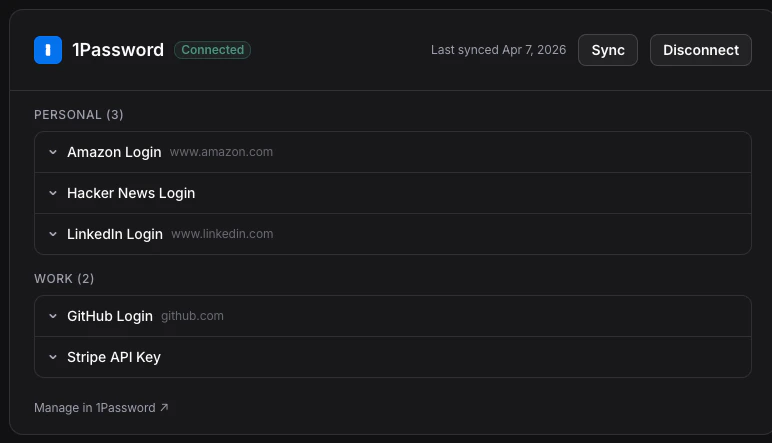 Need a token? Create a service account with read access to your vault. See the [1Password service account docs](https://developer.1password.com/docs/service-accounts/).
Enter your `Client ID`, `Client Secret`, and `Master Password`, then click **Connect**.
Use the format `user.xxxxxxxx-xxxx-xxxx-xxxx-xxxxxxxxxxxx` for the Client ID.
Need a token? Create a service account with read access to your vault. See the [1Password service account docs](https://developer.1password.com/docs/service-accounts/).
Enter your `Client ID`, `Client Secret`, and `Master Password`, then click **Connect**.
Use the format `user.xxxxxxxx-xxxx-xxxx-xxxx-xxxxxxxxxxxx` for the Client ID.
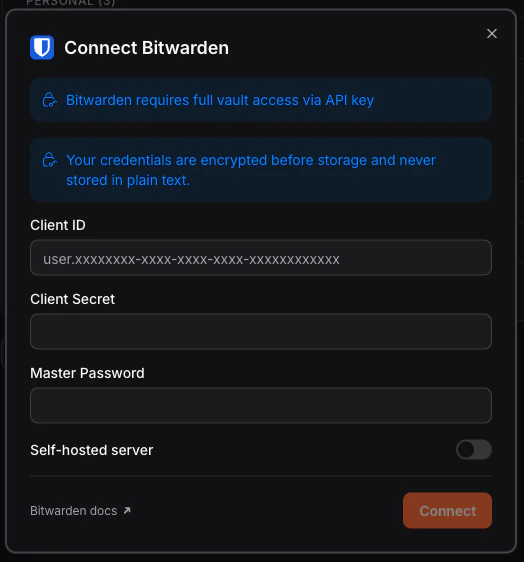 If you use a self-hosted instance, toggle **Self-hosted server** and enter your server URL.
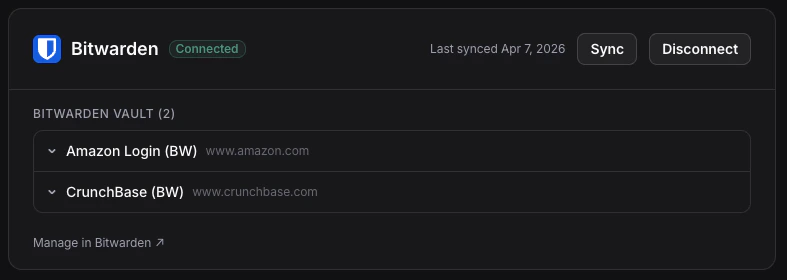 Find your API key in Bitwarden under `Settings` > `Security` > `Keys` > `View API Key`. See the [Bitwarden personal API key guide](https://bitwarden.com/help/personal-api-key/).
The first sync may take up to 15 seconds. Subsequent syncs are faster.
Connect a provider programmatically with `POST /v1/vault/connections`. Credentials are validated immediately — if they're invalid, the request fails with a `400`.
```bash 1Password theme={null}
curl -X POST https://agent.tinyfish.ai/v1/vault/connections \
-H "X-API-Key: $TINYFISH_API_KEY" \
-H "Content-Type: application/json" \
-d '{
"provider": "1password",
"token": "ops_your_service_account_token"
}'
```
```bash Bitwarden theme={null}
curl -X POST https://agent.tinyfish.ai/v1/vault/connections \
-H "X-API-Key: $TINYFISH_API_KEY" \
-H "Content-Type: application/json" \
-d '{
"provider": "bitwarden",
"clientId": "user.xxxxxxxx-xxxx-xxxx-xxxx-xxxxxxxxxxxx",
"clientSecret": "your_client_secret",
"masterPassword": "your_master_password"
}'
```
```bash Bitwarden (self-hosted) theme={null}
curl -X POST https://agent.tinyfish.ai/v1/vault/connections \
-H "X-API-Key: $TINYFISH_API_KEY" \
-H "Content-Type: application/json" \
-d '{
"provider": "bitwarden",
"clientId": "user.xxxxxxxx-xxxx-xxxx-xxxx-xxxxxxxxxxxx",
"clientSecret": "your_client_secret",
"masterPassword": "your_master_password",
"serverUrl": "https://bitwarden.example.com"
}'
```
A successful response includes the `connectionId` and the initial list of synced items:
```json theme={null}
{
"connectionId": "a1b2c3d4-5678-90ab-cdef-1234567890ab",
"connected": true,
"provider": "1password",
"items": [
{
"item_id": "cred:a1b2c3d4-5678-90ab-cdef-1234567890ab:Personal:item-xyz",
"label": "Amazon Login",
"vault_name": "Personal",
"websites": ["https://amazon.com"],
"has_totp": false,
"connectionId": "a1b2c3d4-5678-90ab-cdef-1234567890ab"
}
]
}
```
If the connection already exists for the same provider, it is replaced — not duplicated.
Connect a provider with `tinyfish vault connection add`. Provider secrets are read from environment variables — never passed as flags — so they stay out of shell history.
```bash 1Password theme={null}
TINYFISH_VAULT_TOKEN=ops_your_service_account_token \
tinyfish vault connection add --provider 1password
```
```bash Bitwarden theme={null}
TINYFISH_VAULT_CLIENT_SECRET=your_client_secret \
TINYFISH_VAULT_MASTER_PASSWORD=your_master_password \
tinyfish vault connection add \
--provider bitwarden \
--client-id user.xxxxxxxx-xxxx-xxxx-xxxx-xxxxxxxxxxxx
```
```bash Bitwarden (self-hosted) theme={null}
TINYFISH_VAULT_CLIENT_SECRET=your_client_secret \
TINYFISH_VAULT_MASTER_PASSWORD=your_master_password \
tinyfish vault connection add \
--provider bitwarden \
--client-id user.xxxxxxxx-xxxx-xxxx-xxxx-xxxxxxxxxxxx \
--server-url https://bitwarden.example.com
```
If the connection already exists for the same provider, it is replaced — not duplicated.
Need a 1Password token? Create a service account with read access to your vault. See the [1Password service account docs](https://developer.1password.com/docs/service-accounts/).
## Managing Your Vault
### Sync
Click `Sync` to fetch the latest items from your connected provider.
### Disconnect
Click `Disconnect` and confirm to remove the provider. All cached credentials are removed immediately, but runs already in progress are not affected. You can reconnect at any time.
### List connections
```bash theme={null}
curl https://agent.tinyfish.ai/v1/vault/connections \
-H "X-API-Key: $TINYFISH_API_KEY"
```
```json theme={null}
{
"connections": [
{
"id": "a1b2c3d4-5678-90ab-cdef-1234567890ab",
"provider": "1password",
"connectionStatus": "active",
"lastValidatedAt": "2026-04-10 12:00:00"
}
]
}
```
### List vault items
Retrieve the credential items available for runs. These are read from the local cache, so the response is fast.
```bash theme={null}
curl https://agent.tinyfish.ai/v1/vault/items \
-H "X-API-Key: $TINYFISH_API_KEY"
```
```json theme={null}
{
"items": [
{
"itemId": "cred:a1b2c3d4-5678-90ab-cdef-1234567890ab:Personal:item-xyz",
"connectionId": "a1b2c3d4-5678-90ab-cdef-1234567890ab",
"label": "Amazon Login",
"vaultName": "Personal",
"domains": ["amazon.com"],
"fieldMetadata": [
{ "fieldId": "username", "label": "username", "type": "STRING" },
{ "fieldId": "password", "label": "password", "type": "STRING" }
],
"hasTotp": false
}
]
}
```
The `itemId` is the value you pass as `credential_item_ids` when [starting a run](/key-concepts/credentials#using-the-api).
Items without website URLs in your password manager will still sync, but they won't have any `domains` and can't be matched to a site during a run.
### Sync items
Pull the latest state from your connected providers. Use this before starting a run if you've recently changed passwords.
```bash theme={null}
curl -X POST https://agent.tinyfish.ai/v1/vault/items/sync \
-H "X-API-Key: $TINYFISH_API_KEY"
```
```json theme={null}
{
"items": [ ... ],
"sync_summary": {
"added": 3,
"updated": 1,
"removed": 0
}
}
```
### Disconnect a provider
Removes the connection and all cached credentials. Runs already in progress are not affected.
```bash theme={null}
curl -X DELETE https://agent.tinyfish.ai/v1/vault/connections/a1b2c3d4-5678-90ab-cdef-1234567890ab \
-H "X-API-Key: $TINYFISH_API_KEY"
```
```json theme={null}
{
"disconnected": true,
"connectionId": "a1b2c3d4-5678-90ab-cdef-1234567890ab"
}
```
### List connections
```bash theme={null}
tinyfish vault connection list
```
### Sync items
Pull the latest credentials from your connected providers. Run this after adding new credentials or changing passwords.
```bash theme={null}
tinyfish vault item sync
```
### List items
List all synced credential items. The `itemId` is what you pass to `--credential-item-id` when running an automation.
```bash theme={null}
tinyfish vault item list
```
### Disconnect a provider
Removes the connection and all cached credentials. Runs already in progress are not affected.
```bash theme={null}
tinyfish vault connection remove a1b2c3d4-5678-90ab-cdef-1234567890ab
```
## Using the Vault API
### Quick start
Connect a provider, retrieve item IDs, and start a run with specific credentials:
```bash theme={null}
# 1. Connect your vault (one-time setup)
curl -X POST https://agent.tinyfish.ai/v1/vault/connections \
-H "X-API-Key: $TINYFISH_API_KEY" \
-H "Content-Type: application/json" \
-d '{ "provider": "1password", "token": "ops_your_token" }'
# → returns connectionId and initial items
# 2. List available credentials (reads from cache — fast)
curl -s https://agent.tinyfish.ai/v1/vault/items \
-H "X-API-Key: $TINYFISH_API_KEY"
# → grab the itemId for the credential you need
# 3. Start a run with that credential
curl -X POST https://agent.tinyfish.ai/v1/automation/run \
-H "X-API-Key: $TINYFISH_API_KEY" \
-H "Content-Type: application/json" \
-d '{
"url": "https://www.linkedin.com",
"goal": "Log in and capture the latest 3 posts from the feed",
"use_vault": true,
"credential_item_ids": [
"cred:a1b2c3d4-5678-90ab-cdef-1234567890ab:Work:item-linkedin"
]
}'
```
### Matching credentials to URLs
Filter items by the `domains` field to find the right credential for your target site:
```bash theme={null}
curl -s https://agent.tinyfish.ai/v1/vault/items \
-H "X-API-Key: $TINYFISH_API_KEY" \
| jq '.items[] | select(.domains[] | contains("linkedin.com")) | .itemId'
```
Scoping to specific `credential_item_ids` is more reliable than `use_vault: true` alone — it prevents the agent from picking the wrong login when you have multiple accounts on the same domain.
### When to sync
`GET /v1/vault/items` reads from a local cache and is fast. You don't need to sync before every run.
Call `POST /v1/vault/items/sync` when:
* You've recently changed a password in your vault
* You've added new credentials you want to use
* A run failed to log in and you suspect stale credentials
For most pipelines, syncing once at startup or on a daily schedule is sufficient.
### Handling expired connections
Provider tokens can expire. When they do, `POST /v1/vault/items/sync` returns a `401`. Your pipeline should:
1. Catch the `401` from sync
2. Re-connect with `POST /v1/vault/connections` using a fresh token
3. Retry the sync
1Password service account tokens don't expire unless revoked. Bitwarden tokens may expire based on your server configuration.
## Troubleshooting
For 1Password, verify the token starts with `ops_` and has read access to the vault you want to sync.
For Bitwarden, verify that the `Client ID` and `Client Secret` match the same API key.
The API returns a `400` with `"Invalid vault token"` when credentials fail validation.
Vault items must have website URLs in your password manager to sync into TinyFish.
Credentials without URLs are not synced.
Ensure the server URL includes `https://` and that the server is accessible from TinyFish.
Provider tokens can expire. Disconnect the provider, then reconnect using a fresh token or updated credentials.
`POST /v1/vault/items/sync` returns a `401` when all connections require reconnect and no items can be returned.
The first Bitwarden sync can take up to 15 seconds while the connection initializes. Subsequent syncs are faster.
You can connect a maximum of 2 providers at the same time.
No vault connections exist yet. Connect a provider first with `POST /v1/vault/connections`.
The vault integration is unavailable or the backing vault service returned an error.
## Related
Learn how credentials are selected and used in runs
Understand TinyFish authentication methods
Find your API key in Bitwarden under `Settings` > `Security` > `Keys` > `View API Key`. See the [Bitwarden personal API key guide](https://bitwarden.com/help/personal-api-key/).
The first sync may take up to 15 seconds. Subsequent syncs are faster.
Connect a provider programmatically with `POST /v1/vault/connections`. Credentials are validated immediately — if they're invalid, the request fails with a `400`.
```bash 1Password theme={null}
curl -X POST https://agent.tinyfish.ai/v1/vault/connections \
-H "X-API-Key: $TINYFISH_API_KEY" \
-H "Content-Type: application/json" \
-d '{
"provider": "1password",
"token": "ops_your_service_account_token"
}'
```
```bash Bitwarden theme={null}
curl -X POST https://agent.tinyfish.ai/v1/vault/connections \
-H "X-API-Key: $TINYFISH_API_KEY" \
-H "Content-Type: application/json" \
-d '{
"provider": "bitwarden",
"clientId": "user.xxxxxxxx-xxxx-xxxx-xxxx-xxxxxxxxxxxx",
"clientSecret": "your_client_secret",
"masterPassword": "your_master_password"
}'
```
```bash Bitwarden (self-hosted) theme={null}
curl -X POST https://agent.tinyfish.ai/v1/vault/connections \
-H "X-API-Key: $TINYFISH_API_KEY" \
-H "Content-Type: application/json" \
-d '{
"provider": "bitwarden",
"clientId": "user.xxxxxxxx-xxxx-xxxx-xxxx-xxxxxxxxxxxx",
"clientSecret": "your_client_secret",
"masterPassword": "your_master_password",
"serverUrl": "https://bitwarden.example.com"
}'
```
A successful response includes the `connectionId` and the initial list of synced items:
```json theme={null}
{
"connectionId": "a1b2c3d4-5678-90ab-cdef-1234567890ab",
"connected": true,
"provider": "1password",
"items": [
{
"item_id": "cred:a1b2c3d4-5678-90ab-cdef-1234567890ab:Personal:item-xyz",
"label": "Amazon Login",
"vault_name": "Personal",
"websites": ["https://amazon.com"],
"has_totp": false,
"connectionId": "a1b2c3d4-5678-90ab-cdef-1234567890ab"
}
]
}
```
If the connection already exists for the same provider, it is replaced — not duplicated.
Connect a provider with `tinyfish vault connection add`. Provider secrets are read from environment variables — never passed as flags — so they stay out of shell history.
```bash 1Password theme={null}
TINYFISH_VAULT_TOKEN=ops_your_service_account_token \
tinyfish vault connection add --provider 1password
```
```bash Bitwarden theme={null}
TINYFISH_VAULT_CLIENT_SECRET=your_client_secret \
TINYFISH_VAULT_MASTER_PASSWORD=your_master_password \
tinyfish vault connection add \
--provider bitwarden \
--client-id user.xxxxxxxx-xxxx-xxxx-xxxx-xxxxxxxxxxxx
```
```bash Bitwarden (self-hosted) theme={null}
TINYFISH_VAULT_CLIENT_SECRET=your_client_secret \
TINYFISH_VAULT_MASTER_PASSWORD=your_master_password \
tinyfish vault connection add \
--provider bitwarden \
--client-id user.xxxxxxxx-xxxx-xxxx-xxxx-xxxxxxxxxxxx \
--server-url https://bitwarden.example.com
```
If the connection already exists for the same provider, it is replaced — not duplicated.
Need a 1Password token? Create a service account with read access to your vault. See the [1Password service account docs](https://developer.1password.com/docs/service-accounts/).
## Managing Your Vault
### Sync
Click `Sync` to fetch the latest items from your connected provider.
### Disconnect
Click `Disconnect` and confirm to remove the provider. All cached credentials are removed immediately, but runs already in progress are not affected. You can reconnect at any time.
### List connections
```bash theme={null}
curl https://agent.tinyfish.ai/v1/vault/connections \
-H "X-API-Key: $TINYFISH_API_KEY"
```
```json theme={null}
{
"connections": [
{
"id": "a1b2c3d4-5678-90ab-cdef-1234567890ab",
"provider": "1password",
"connectionStatus": "active",
"lastValidatedAt": "2026-04-10 12:00:00"
}
]
}
```
### List vault items
Retrieve the credential items available for runs. These are read from the local cache, so the response is fast.
```bash theme={null}
curl https://agent.tinyfish.ai/v1/vault/items \
-H "X-API-Key: $TINYFISH_API_KEY"
```
```json theme={null}
{
"items": [
{
"itemId": "cred:a1b2c3d4-5678-90ab-cdef-1234567890ab:Personal:item-xyz",
"connectionId": "a1b2c3d4-5678-90ab-cdef-1234567890ab",
"label": "Amazon Login",
"vaultName": "Personal",
"domains": ["amazon.com"],
"fieldMetadata": [
{ "fieldId": "username", "label": "username", "type": "STRING" },
{ "fieldId": "password", "label": "password", "type": "STRING" }
],
"hasTotp": false
}
]
}
```
The `itemId` is the value you pass as `credential_item_ids` when [starting a run](/key-concepts/credentials#using-the-api).
Items without website URLs in your password manager will still sync, but they won't have any `domains` and can't be matched to a site during a run.
### Sync items
Pull the latest state from your connected providers. Use this before starting a run if you've recently changed passwords.
```bash theme={null}
curl -X POST https://agent.tinyfish.ai/v1/vault/items/sync \
-H "X-API-Key: $TINYFISH_API_KEY"
```
```json theme={null}
{
"items": [ ... ],
"sync_summary": {
"added": 3,
"updated": 1,
"removed": 0
}
}
```
### Disconnect a provider
Removes the connection and all cached credentials. Runs already in progress are not affected.
```bash theme={null}
curl -X DELETE https://agent.tinyfish.ai/v1/vault/connections/a1b2c3d4-5678-90ab-cdef-1234567890ab \
-H "X-API-Key: $TINYFISH_API_KEY"
```
```json theme={null}
{
"disconnected": true,
"connectionId": "a1b2c3d4-5678-90ab-cdef-1234567890ab"
}
```
### List connections
```bash theme={null}
tinyfish vault connection list
```
### Sync items
Pull the latest credentials from your connected providers. Run this after adding new credentials or changing passwords.
```bash theme={null}
tinyfish vault item sync
```
### List items
List all synced credential items. The `itemId` is what you pass to `--credential-item-id` when running an automation.
```bash theme={null}
tinyfish vault item list
```
### Disconnect a provider
Removes the connection and all cached credentials. Runs already in progress are not affected.
```bash theme={null}
tinyfish vault connection remove a1b2c3d4-5678-90ab-cdef-1234567890ab
```
## Using the Vault API
### Quick start
Connect a provider, retrieve item IDs, and start a run with specific credentials:
```bash theme={null}
# 1. Connect your vault (one-time setup)
curl -X POST https://agent.tinyfish.ai/v1/vault/connections \
-H "X-API-Key: $TINYFISH_API_KEY" \
-H "Content-Type: application/json" \
-d '{ "provider": "1password", "token": "ops_your_token" }'
# → returns connectionId and initial items
# 2. List available credentials (reads from cache — fast)
curl -s https://agent.tinyfish.ai/v1/vault/items \
-H "X-API-Key: $TINYFISH_API_KEY"
# → grab the itemId for the credential you need
# 3. Start a run with that credential
curl -X POST https://agent.tinyfish.ai/v1/automation/run \
-H "X-API-Key: $TINYFISH_API_KEY" \
-H "Content-Type: application/json" \
-d '{
"url": "https://www.linkedin.com",
"goal": "Log in and capture the latest 3 posts from the feed",
"use_vault": true,
"credential_item_ids": [
"cred:a1b2c3d4-5678-90ab-cdef-1234567890ab:Work:item-linkedin"
]
}'
```
### Matching credentials to URLs
Filter items by the `domains` field to find the right credential for your target site:
```bash theme={null}
curl -s https://agent.tinyfish.ai/v1/vault/items \
-H "X-API-Key: $TINYFISH_API_KEY" \
| jq '.items[] | select(.domains[] | contains("linkedin.com")) | .itemId'
```
Scoping to specific `credential_item_ids` is more reliable than `use_vault: true` alone — it prevents the agent from picking the wrong login when you have multiple accounts on the same domain.
### When to sync
`GET /v1/vault/items` reads from a local cache and is fast. You don't need to sync before every run.
Call `POST /v1/vault/items/sync` when:
* You've recently changed a password in your vault
* You've added new credentials you want to use
* A run failed to log in and you suspect stale credentials
For most pipelines, syncing once at startup or on a daily schedule is sufficient.
### Handling expired connections
Provider tokens can expire. When they do, `POST /v1/vault/items/sync` returns a `401`. Your pipeline should:
1. Catch the `401` from sync
2. Re-connect with `POST /v1/vault/connections` using a fresh token
3. Retry the sync
1Password service account tokens don't expire unless revoked. Bitwarden tokens may expire based on your server configuration.
## Troubleshooting
For 1Password, verify the token starts with `ops_` and has read access to the vault you want to sync.
For Bitwarden, verify that the `Client ID` and `Client Secret` match the same API key.
The API returns a `400` with `"Invalid vault token"` when credentials fail validation.
Vault items must have website URLs in your password manager to sync into TinyFish.
Credentials without URLs are not synced.
Ensure the server URL includes `https://` and that the server is accessible from TinyFish.
Provider tokens can expire. Disconnect the provider, then reconnect using a fresh token or updated credentials.
`POST /v1/vault/items/sync` returns a `401` when all connections require reconnect and no items can be returned.
The first Bitwarden sync can take up to 15 seconds while the connection initializes. Subsequent syncs are faster.
You can connect a maximum of 2 providers at the same time.
No vault connections exist yet. Connect a provider first with `POST /v1/vault/connections`.
The vault integration is unavailable or the backing vault service returned an error.
## Related
Learn how credentials are selected and used in runs
Understand TinyFish authentication methods