

Using the Playground
1
Open the vault selector
Click the lock icon in the playground toolbar.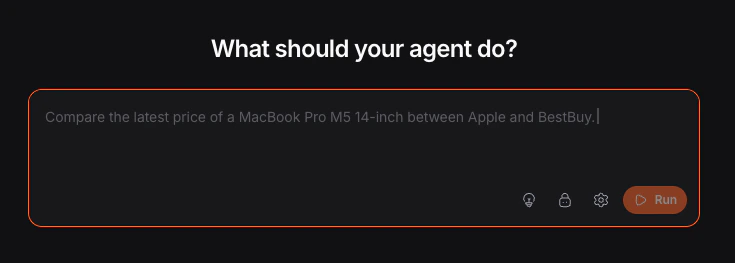
2
Select credentials
Check the credentials you want to use for the run. Items are grouped by provider and vault name, and you can use Select all or Deselect all.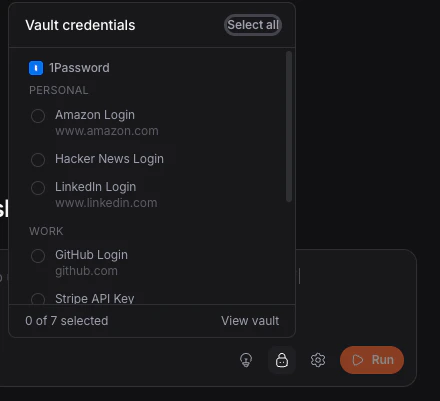
3
Run your automation
Write your goal, then click Run. TinyFish handles login during the run when a matching site requires it.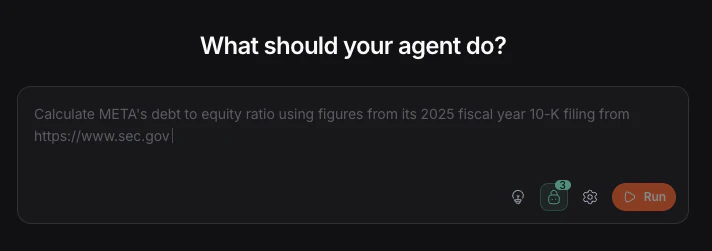
Your credential selections persist across sessions.
Using the API
Parameters
Domain Matching
Credentials are matched by domain. For example, a credential withlinkedin.com in its URL will be available when the agent navigates to www.linkedin.com or login.linkedin.com.
Credentials are not available on unrelated domains.
If you have multiple credentials for the same domain, TinyFish uses the ones you selected for that run.
Security
What the AI agent sees
Labels and field names only. Never actual values. The agent tells TinyFish where to type, and TinyFish handles what to type.What we don’t do
Credentials never appear in agent prompts, run logs, screenshots, or streaming output. We do not rely on visual obfuscation as a security measure.Credential lifecycle
Credentials are resolved at the browser automation layer, not the AI planning layer. Values exist in memory only for the duration of the input action, then are discarded.Per-run access
Each run only gets the credentials you explicitly selected. The default is no vault access withuse_vault: false.
Encryption
Vault provider tokens are encrypted at rest and never stored in plaintext. You can revoke access by disconnecting the vault or rotating the token.Limitations
Troubleshooting
credential_item_ids requires use_vault to be true
credential_item_ids requires use_vault to be true
Add
use_vault: true to the request body.Credentials not being used during run
Credentials not being used during run
Verify the credential domain matches the target site.
use_vault is true but no vault connected
use_vault is true but no vault connected
Connect a vault first in Settings → Vault.
Wrong credential used
Wrong credential used
Use
credential_item_ids to scope the run to the exact credential you want.Login failed or keeps repeating
Login failed or keeps repeating
Pair Vault with Browser Context Profiles. Browser Context Profiles keep the browser
logged in; if the session goes stale and a matching vault credential is available, TinyFish can
use the credential to repair the session. For bot challenges, also add
browser_profile: "stealth" and proxy_config: { enabled: true }.Vault icon not in playground toolbar
Vault icon not in playground toolbar
Connect a vault first in Settings → Vault.
FAQ
Can TinyFish read all my passwords?
Can TinyFish read all my passwords?
No. Values are only accessed at the moment of typing, and the AI agent never sees them.
Do credentials appear in run recordings?
Do credentials appear in run recordings?
No. Credentials are not captured in screenshots, streaming output, or logs.
What if I change a password?
What if I change a password?
Click Sync in Settings → Vault. The next run uses the updated credential.
What happens if login fails?
What happens if login fails?
TinyFish retries with available credentials for that domain. After multiple failures, the run continues without login.
What if I update my vault mid-run?
What if I update my vault mid-run?
Runs use the credential state from when they started. Sync before starting a new run.
Related
Connect Your Vault
Set up 1Password or Bitwarden
Runs
Parameters, lifecycle, and result handling
Browser Context Profiles
Reuse Browser Context Profile state across runs