

How It Works
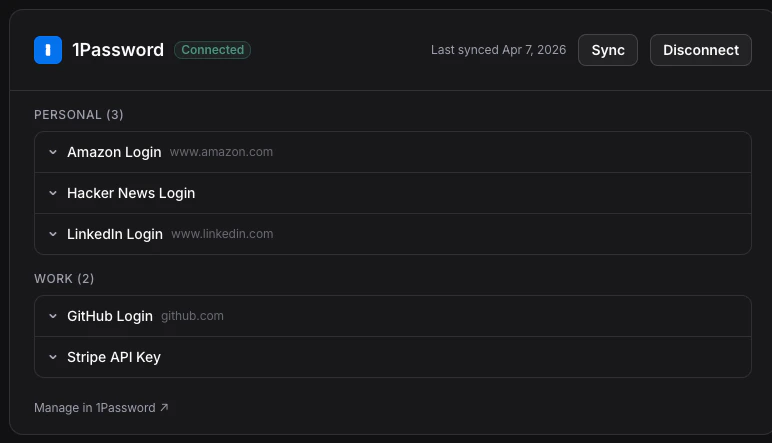
Connect your password manager account, TinyFish syncs your vault items, and then you select specific credentials for each run. Each run only gets the credentials you explicitly choose, so no run has access to your full vault.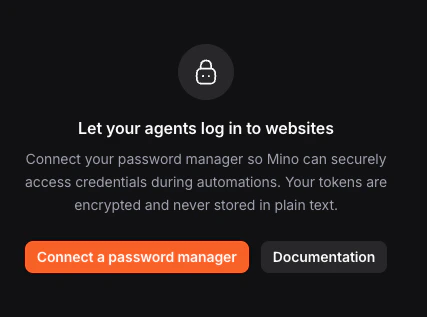
Connect Your Provider
More providers coming soon.
- Dashboard
- API
- CLI
In TinyFish, go to Settings > Vault and click Connect a password manager.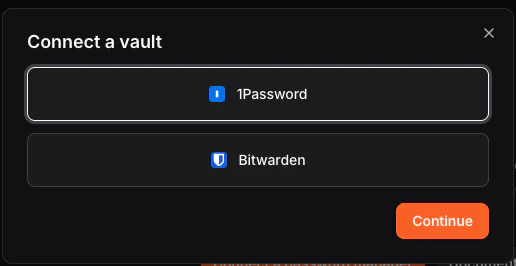
1Password
1Password
Paste your Service Account Token (starts with 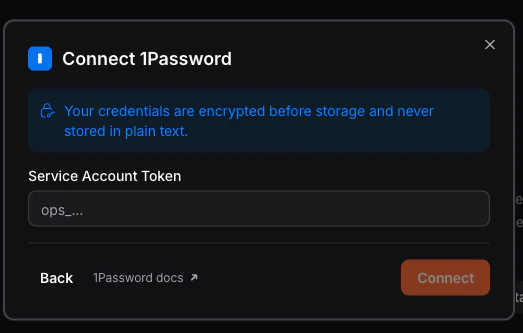
ops_), then click Connect.Bitwarden
Bitwarden
Enter your 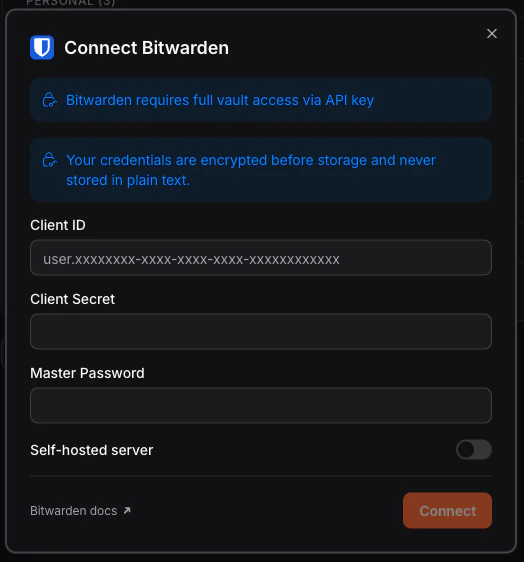
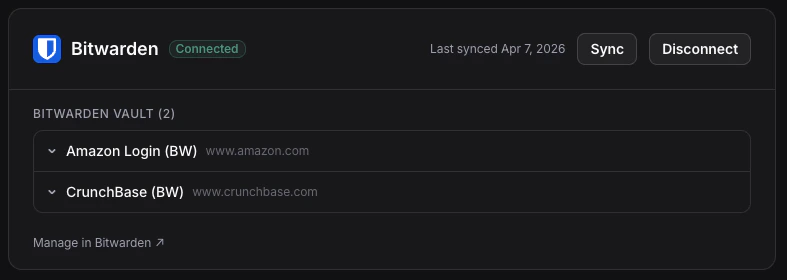
Client ID, Client Secret, and Master Password, then click Connect.Use the format user.xxxxxxxx-xxxx-xxxx-xxxx-xxxxxxxxxxxx for the Client ID.The first sync may take up to 15 seconds. Subsequent syncs are faster.
Managing Your Vault
- Dashboard
- API
- CLI
Using the Vault API
Quick start
Connect a provider, retrieve item IDs, and start a run with specific credentials:Matching credentials to URLs
Filter items by thedomains field to find the right credential for your target site:
credential_item_ids is more reliable than use_vault: true alone — it prevents the agent from picking the wrong login when you have multiple accounts on the same domain.
When to sync
GET /v1/vault/items reads from a local cache and is fast. You don’t need to sync before every run.
Call POST /v1/vault/items/sync when:
- You’ve recently changed a password in your vault
- You’ve added new credentials you want to use
- A run failed to log in and you suspect stale credentials
Handling expired connections
Provider tokens can expire. When they do,POST /v1/vault/items/sync returns a 401. Your pipeline should:
- Catch the
401from sync - Re-connect with
POST /v1/vault/connectionsusing a fresh token - Retry the sync
Troubleshooting
Connection failed — invalid credentials
Connection failed — invalid credentials
For 1Password, verify the token starts with
ops_ and has read access to the vault you want to sync.For Bitwarden, verify that the Client ID and Client Secret match the same API key.The API returns a 400 with "Invalid vault token" when credentials fail validation.Vault items not appearing after sync
Vault items not appearing after sync
Vault items must have website URLs in your password manager to sync into TinyFish.Credentials without URLs are not synced.
Self-hosted Bitwarden not connecting
Self-hosted Bitwarden not connecting
Ensure the server URL includes
https:// and that the server is accessible from TinyFish.Token expired or reconnect required
Token expired or reconnect required
Provider tokens can expire. Disconnect the provider, then reconnect using a fresh token or updated credentials.
POST /v1/vault/items/sync returns a 401 when all connections require reconnect and no items can be returned.First sync is slow
First sync is slow
The first Bitwarden sync can take up to 15 seconds while the connection initializes. Subsequent syncs are faster.
All providers already connected
All providers already connected
You can connect a maximum of 2 providers at the same time.
API returns 404 on vault items
API returns 404 on vault items
No vault connections exist yet. Connect a provider first with
POST /v1/vault/connections.API returns 503
API returns 503
The vault integration is unavailable or the backing vault service returned an error.
Related
Vault Credentials
Learn how credentials are selected and used in runs
Authentication
Understand TinyFish authentication methods