

Capability: Browser Context Profiles
Set Up the Profile
1
Name the profile
Go to Browser Context Profiles and
click Create profile. Give it a name you’ll recognize later.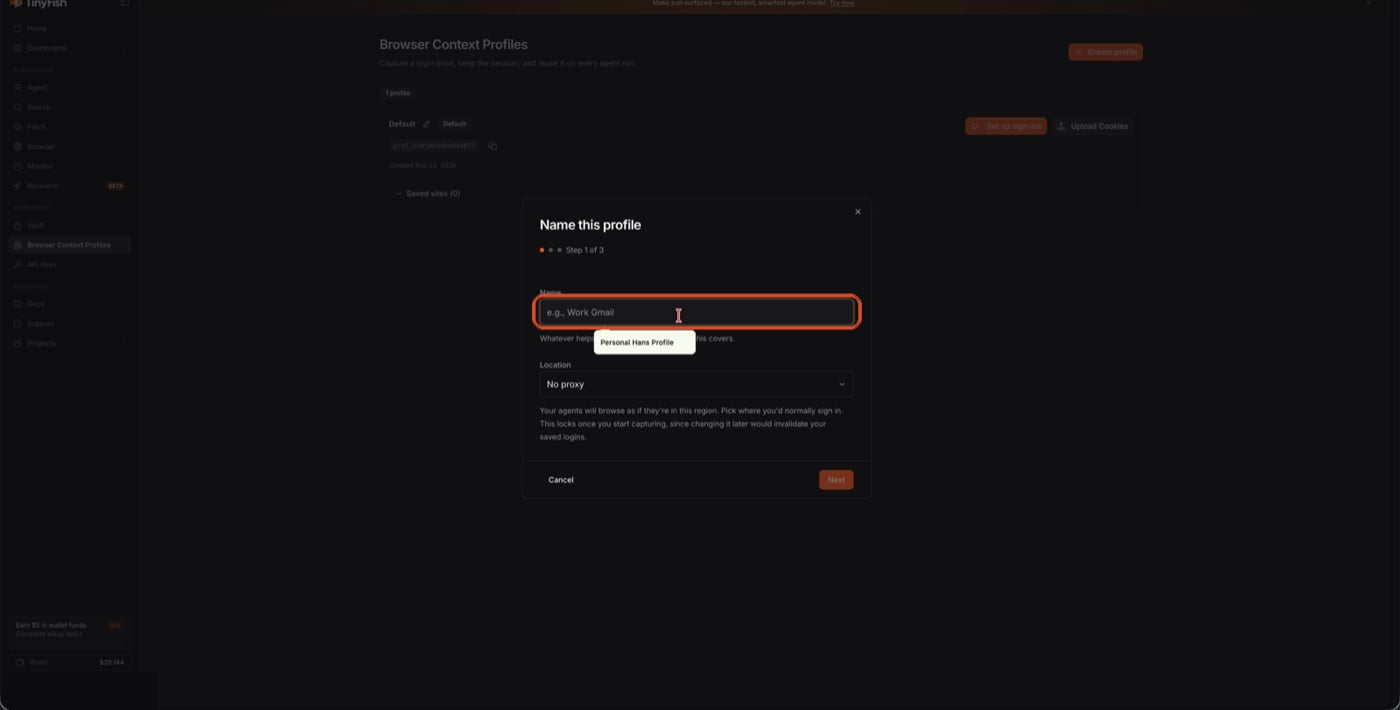
Name the profile, then click Next.
2
Choose how to sign in
Pick Open a browser and sign in — TinyFish launches a managed
browser you sign into directly.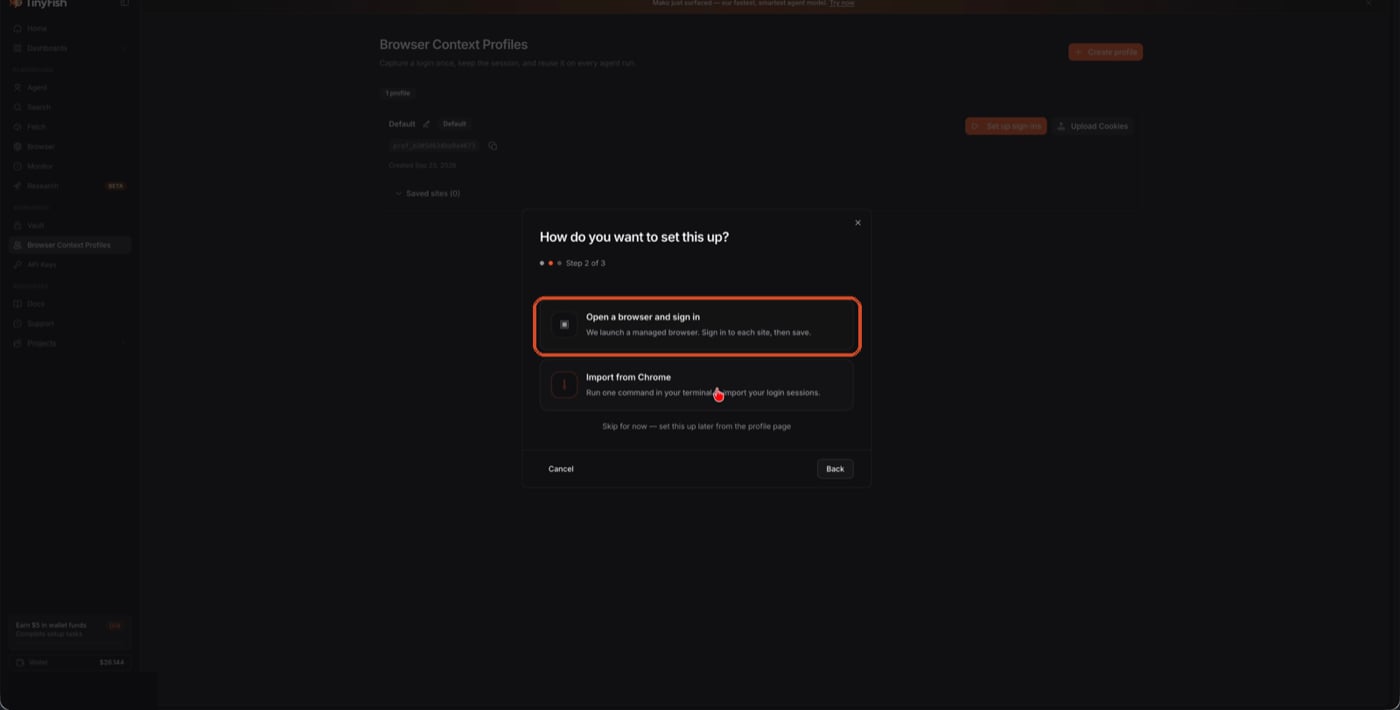
Choose Open a browser and sign in.
3
Sign into Google in the captured session
Type a Google domain and tap Open, then sign in as you normally
would. TinyFish records the session while you browse.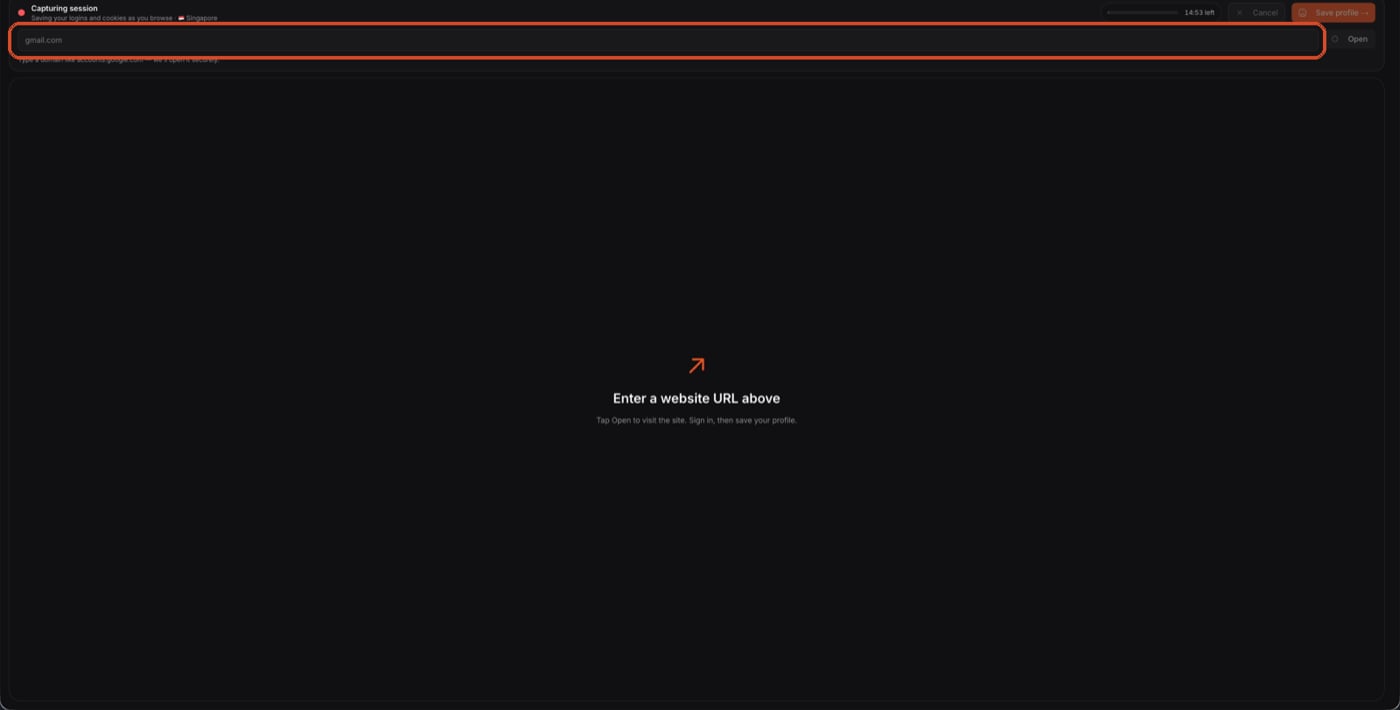
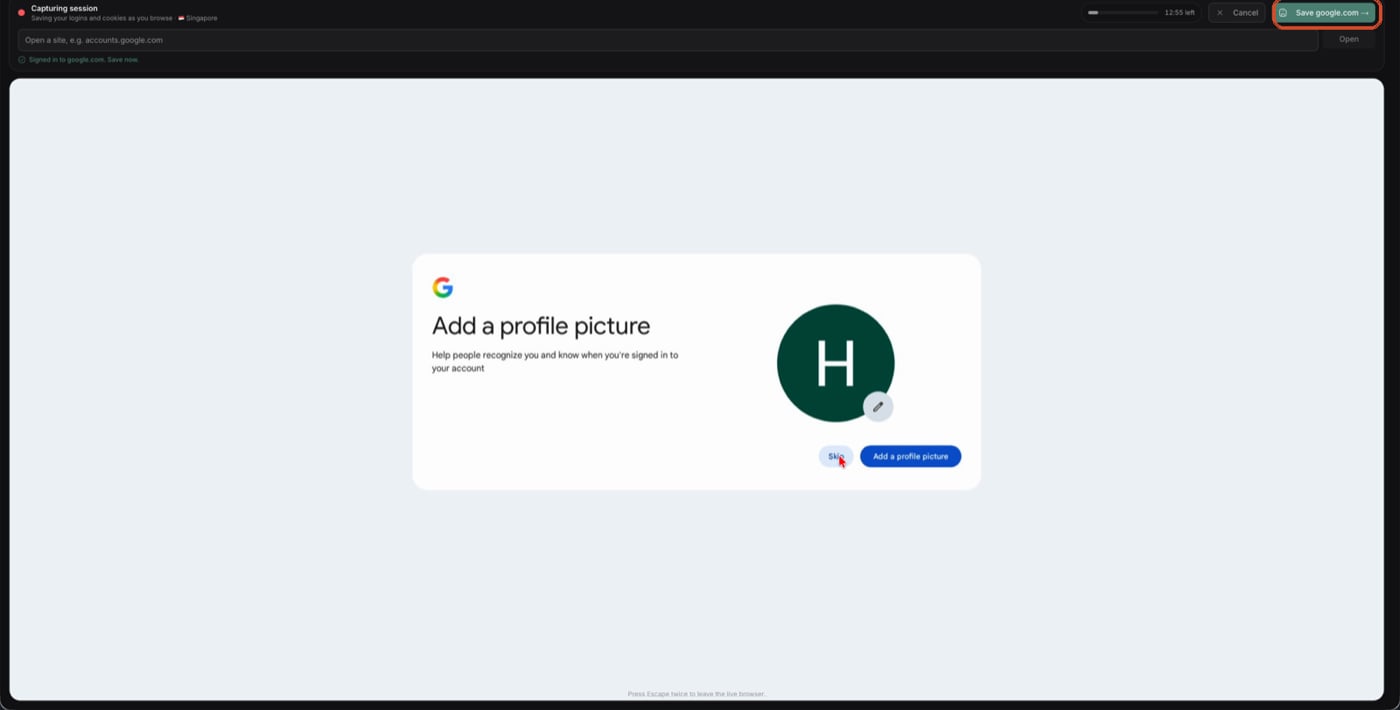
Enter a Google domain, e.g. accounts.google.com, and sign in.
Once signed in, click Save to store the session.
4
Confirm the profile is ready
The profile page lists every domain it captured a session for. From
here you can also run the agent directly against this profile.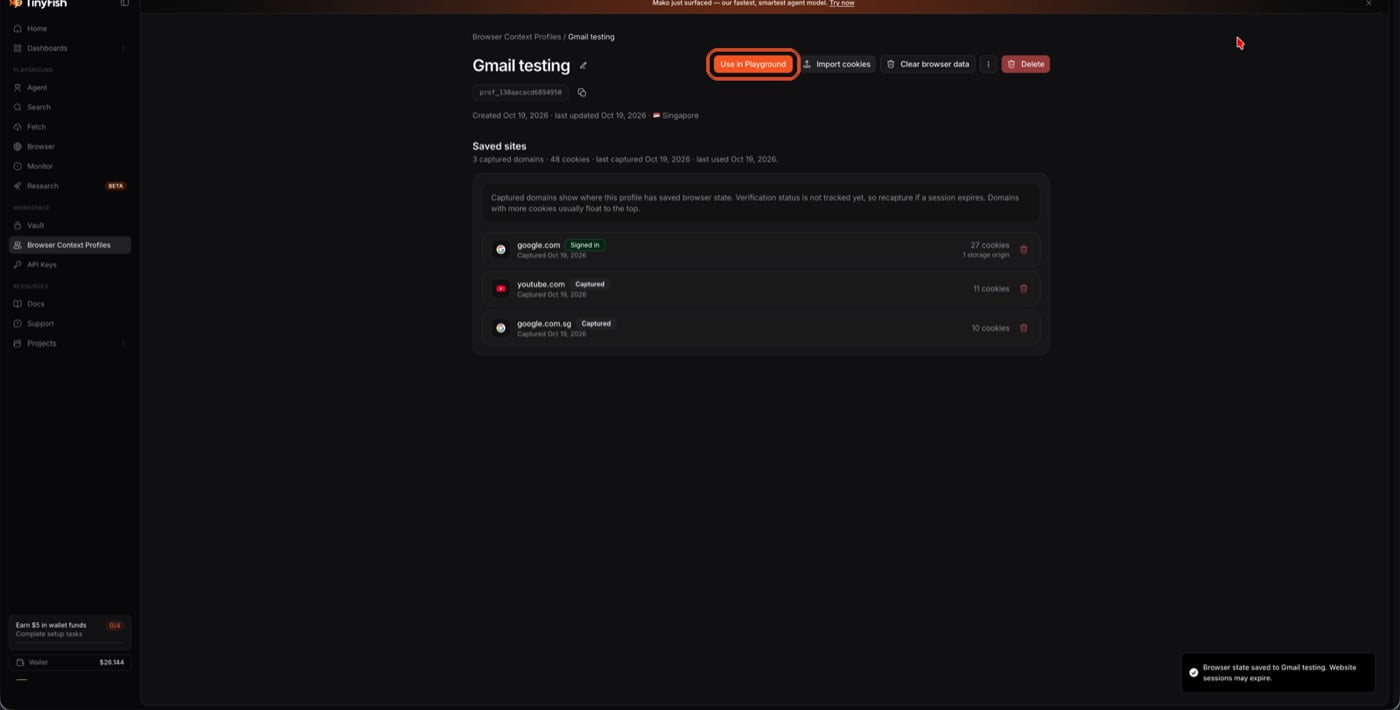
Profile saved — google.com shows as Signed in.
Run the Agent With the Profile
This is the same goal as the API example below — a form titled “Event RSVP” with a required short-answer name field and a required multiple-choice attendance question.1
Attach the profile to a goal in the Playground
Open the Agent Playground,
select the profile from the profile picker next to the goal box, type
the goal, and click Run.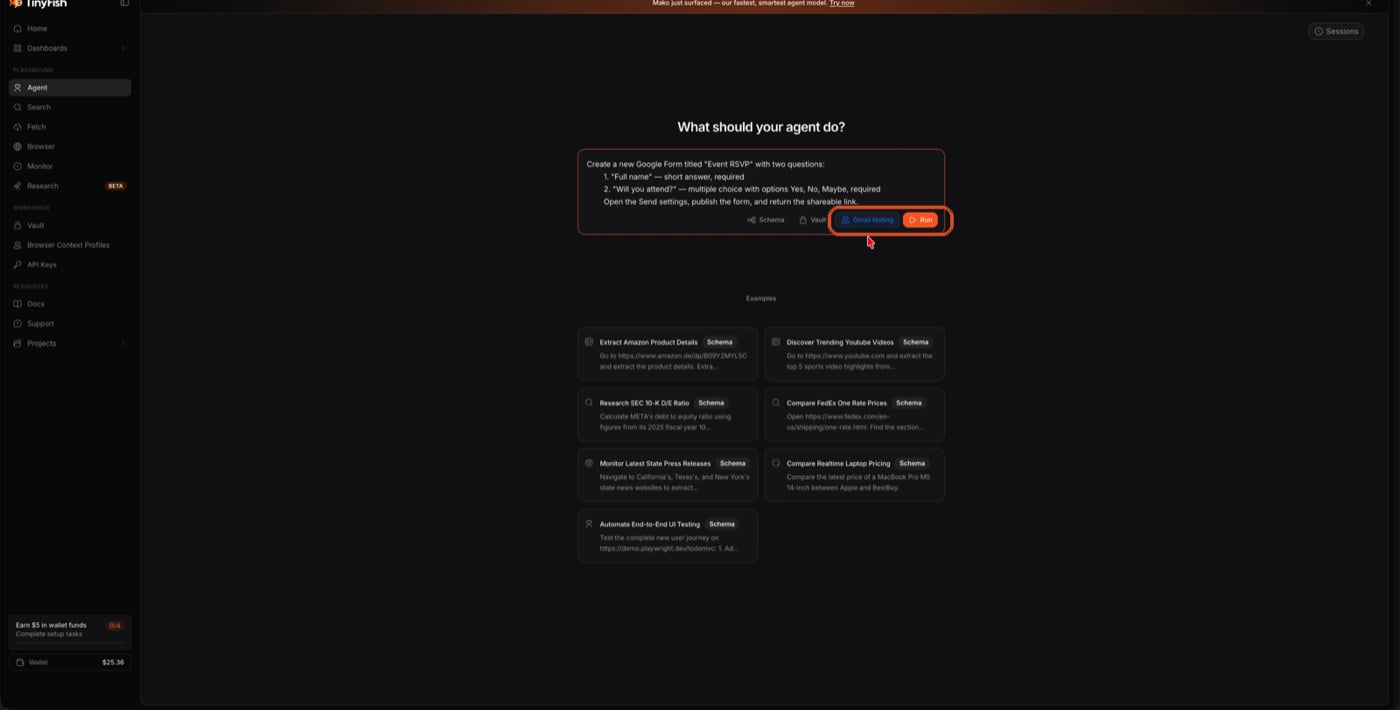
Pick the profile, describe the form, then click Run.
2
Watch it build the form live
No login prompt — the agent opens Google Forms already authenticated as
the account captured in the profile, then adds the title and each
question.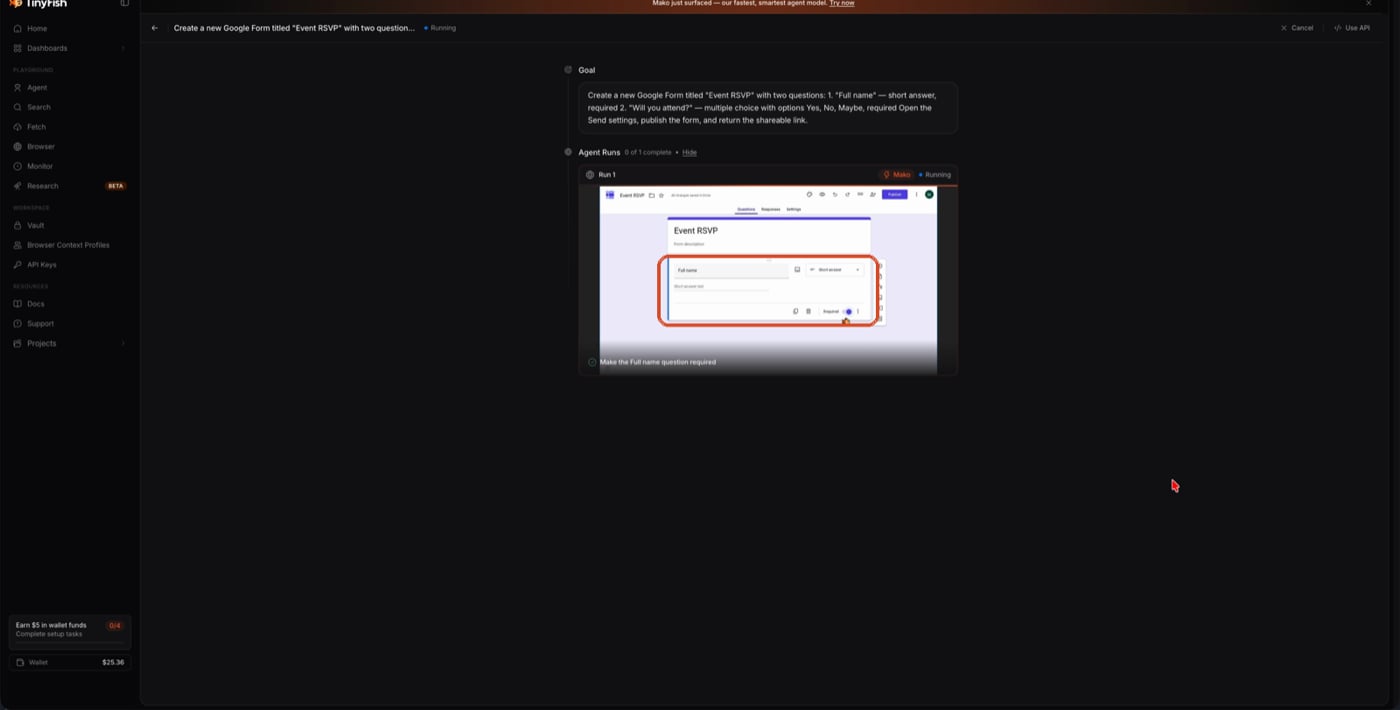
Signed in automatically — the agent adds and configures each question.
3
Get the published form and its link
When the run completes, the result includes the shareable link and a
summary of what was created.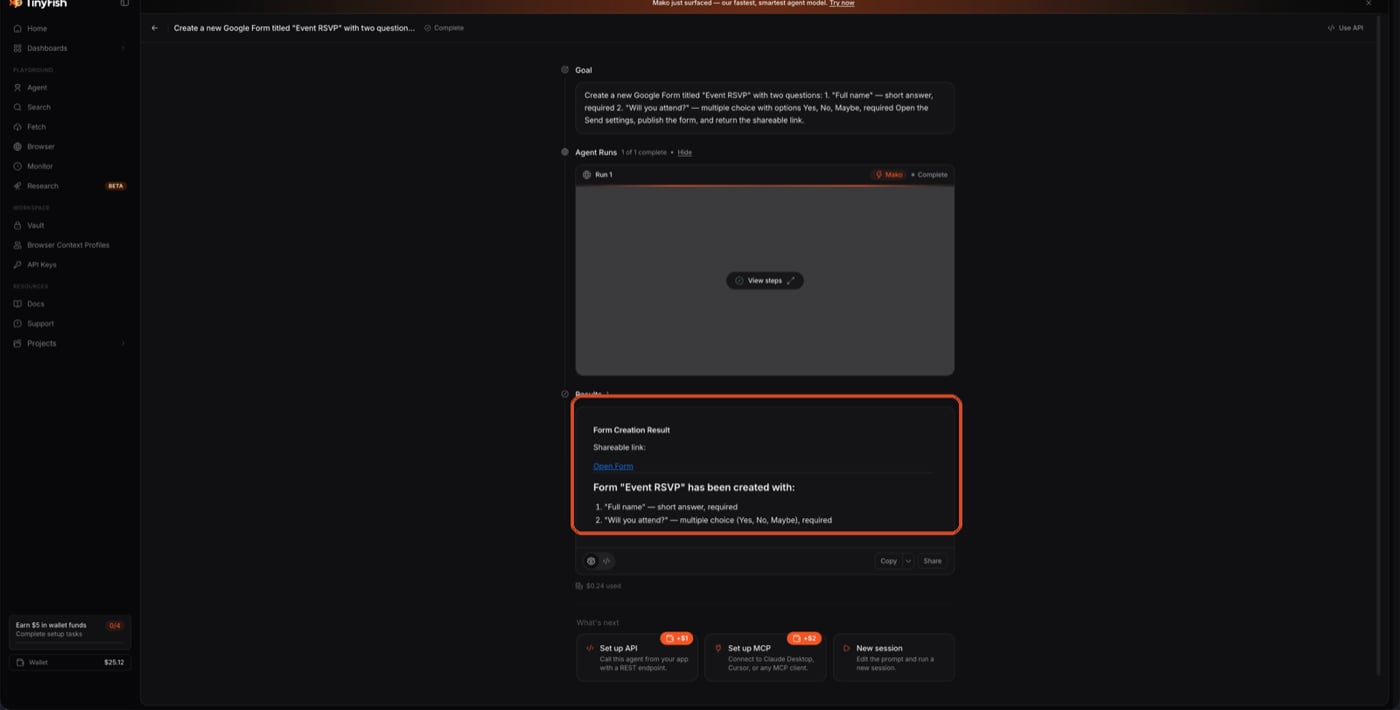
Run complete — Open Form is the published, shareable link.
Or With the API
profile_id and just send use_profile: true to use the account’s
default profile instead of a specific one.
Common Mistakes
use_profile: true with no default profile
use_profile: true with no default profile
This returns
400 if the account has no default Browser Context Profile
yet. Create one and set it as default first, or pass an explicit
profile_id instead. Full error table: Common errors.Session looked captured but the run still hits a login wall
Session looked captured but the run still hits a login wall
A captured session can still go stale between setup and the actual run.
Pair the profile with Vault (
use_vault: true) so TinyFish can repair an
expired session instead of failing the run — see Browser Context Profiles + Vault.Related
Browser Context Profiles
Create, inspect, and manage saved profiles
Why Profiles Exist
Per-domain session isolation and the security model