

Capability:
output_schemaRun It With a Schema
1
Type your goal
Write the goal as usual. Next to it, the Schema button is where
you’ll define the shape of the result.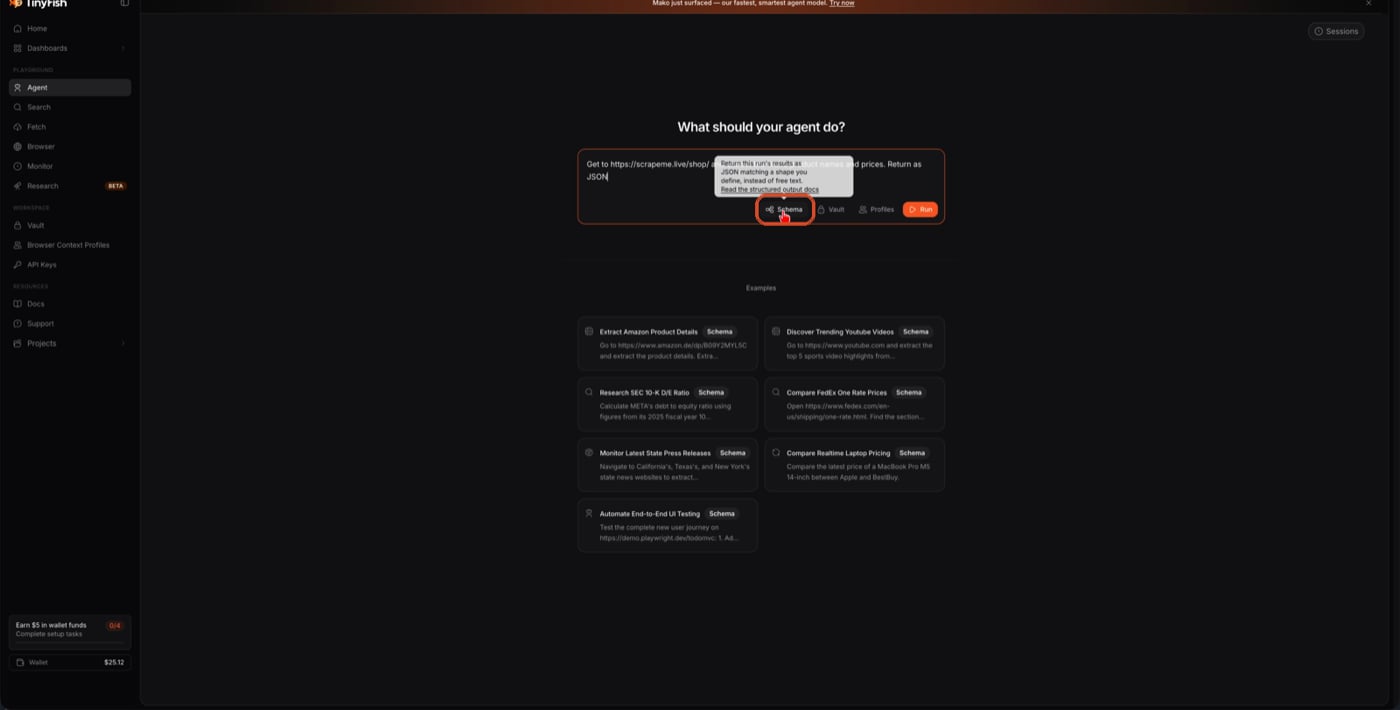
Click Schema to define the result shape instead of free text.
2
Define the output schema
Build the shape field by field. Here, 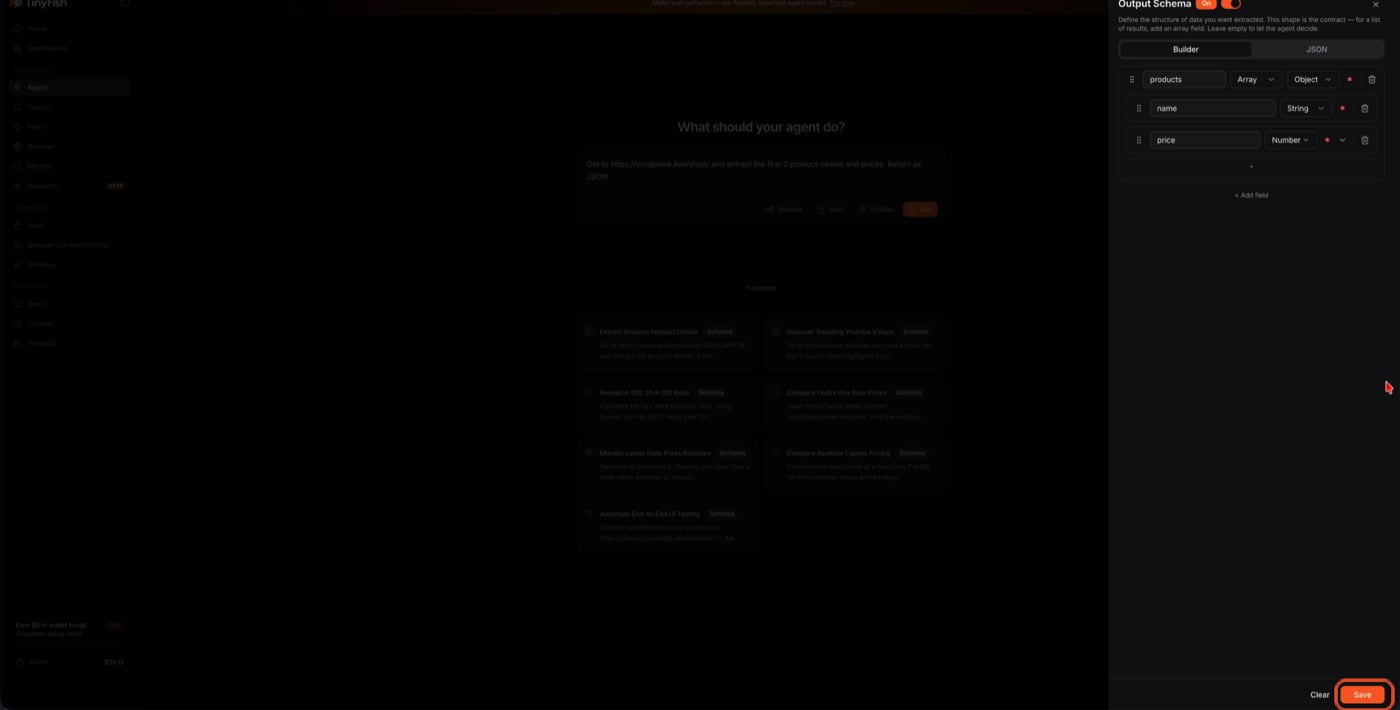
products is an array of objects,
each with a name (string) and price (string — this page’s prices
include a currency symbol, so a number field would silently drop them;
see Common Mistakes below).Add each field and its type, then click Save.
3
Run it
The goal box now shows Schema: On. Click Run.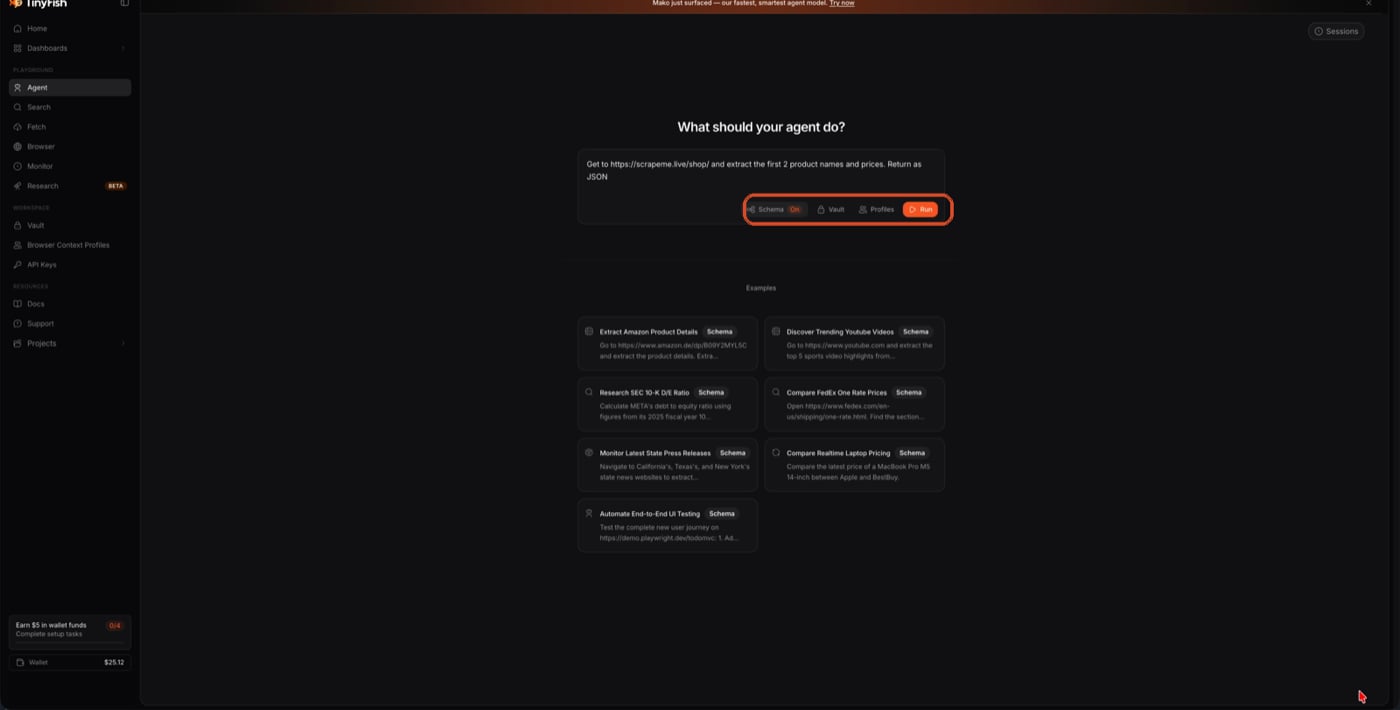
Schema: On confirms it’s attached — then click Run.
4
Watch it run live
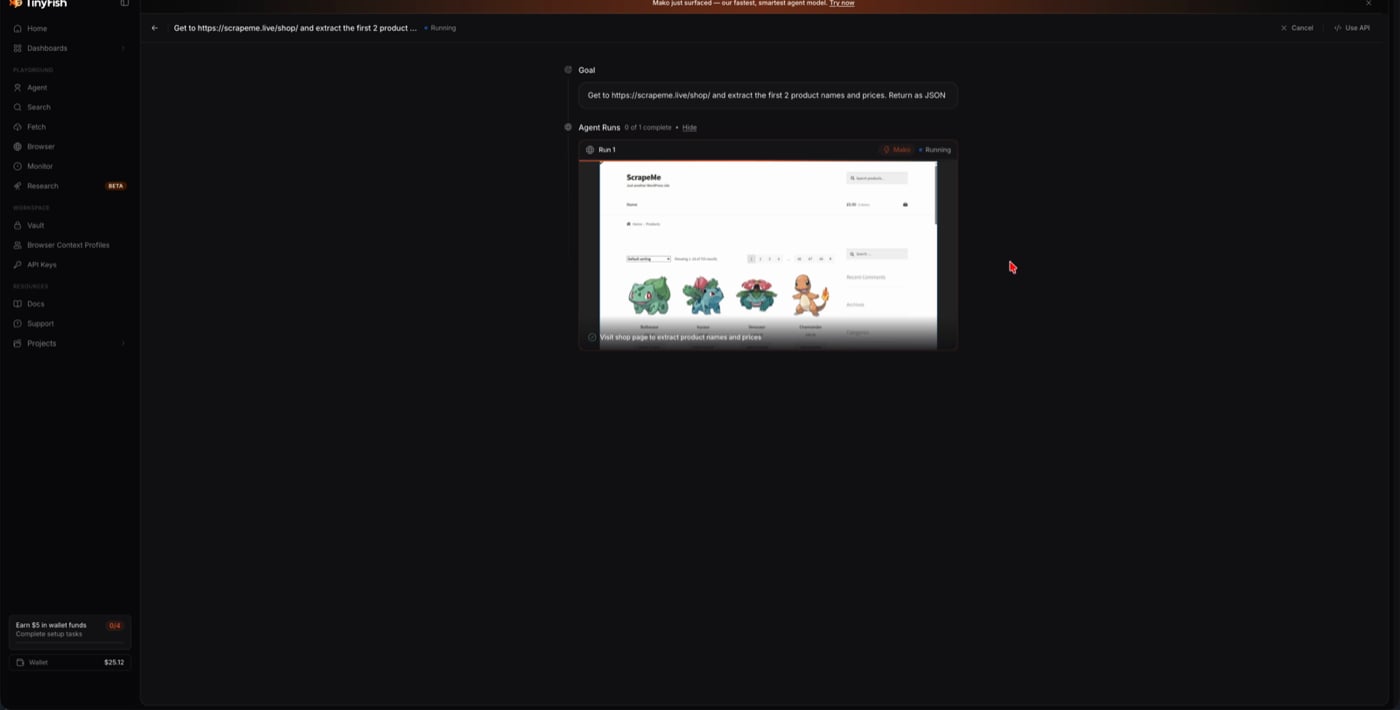
The agent visits the page and extracts the data while you watch.
5
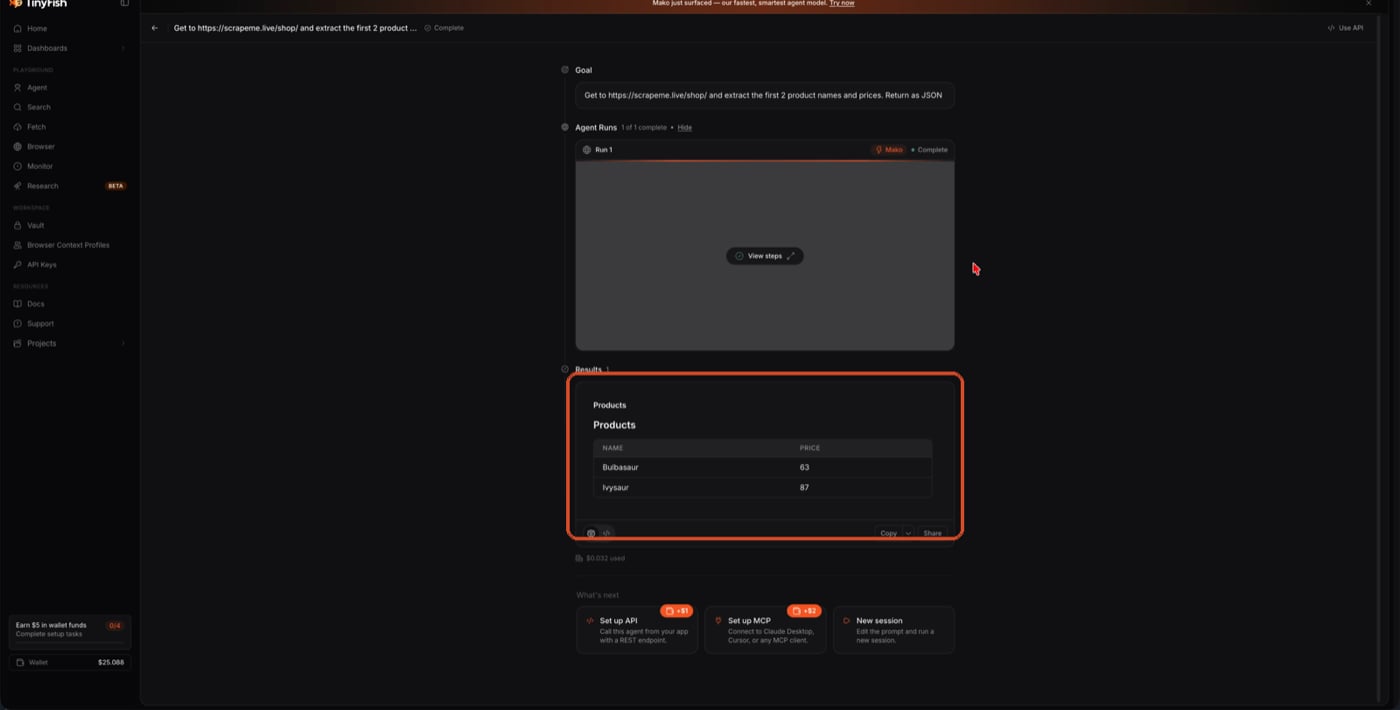
Read the structured result
The result matches the schema exactly — same field names, same types,
every time.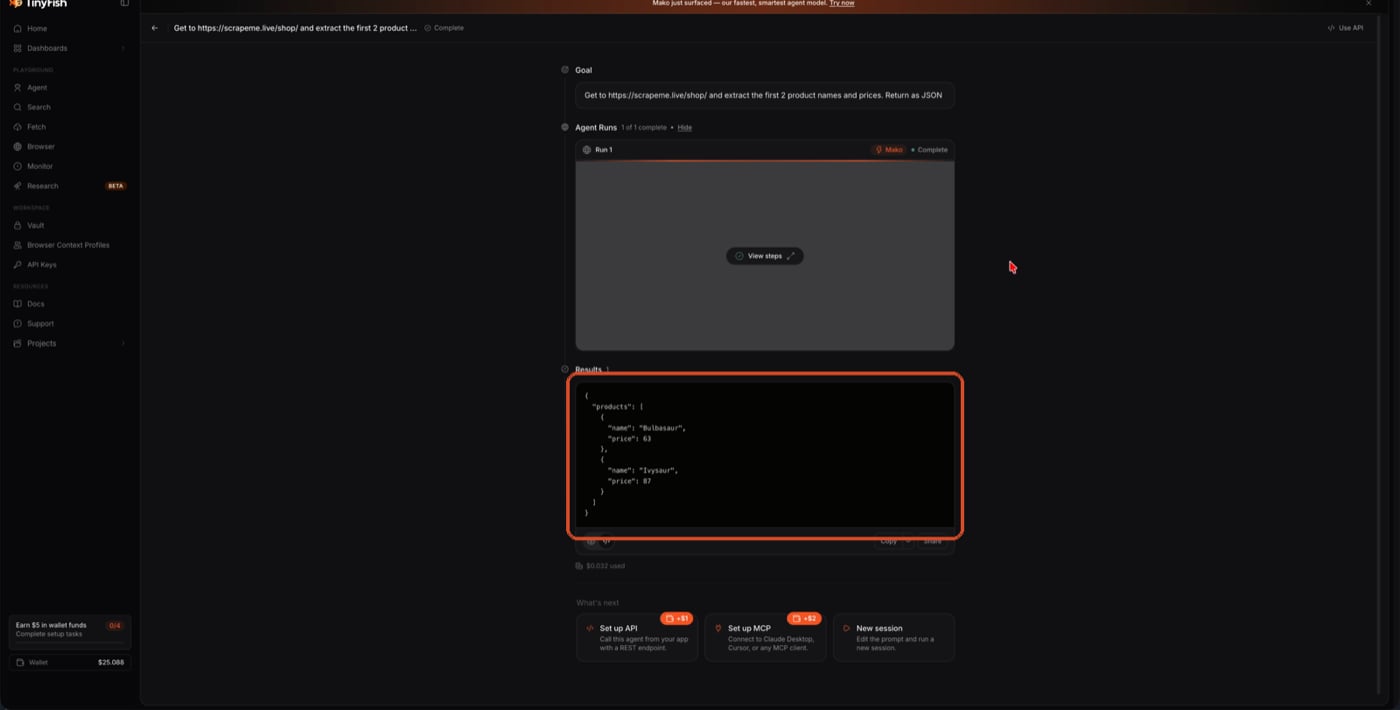
Raw JSON, shaped exactly like the schema.
Toggle to a table for the same data:Same result, table view.
Or With the API
Result
Common Mistakes
A field silently drops instead of erroring
A field silently drops instead of erroring
If a field’s type can’t hold what the page actually shows, the agent
drops that item from the result instead of failing loudly. The price on
this page renders as
£63.00 — a number field can’t hold the currency
symbol, so a price: { "type": "number" } schema returns "products": []
instead of an error. Use "type": "string" when the source text isn’t a
bare number, as this guide now does.Schema built but not turned on
Schema built but not turned on
Building fields in the Schema panel and clicking Save does not enable
enforcement by itself — the separate Output Schema toggle at the top
of the panel must also be switched to On. The goal box shows
Schema: On only once both steps are done; if you only did the first,
the schema is silently ignored.
Related
Structured Output Reference
Supported types, keyword allowlist, size/depth limits, common rewrites
TinyAgent Reference
Full request and response schema